Your Guide to a Modern Video Editor With Effects
Discover how a modern video editor with effects transforms your content. This guide covers key features, AI workflows, and how to create pro-level video.
When you're ready to move beyond just snipping and joining clips, you step into the world of the video editor with effects. This is where the real creative magic happens. It’s the difference between a simple pair of scissors and a full-blown artist's toolkit, giving you the power to add professional flair, emotion, and visual punch to your raw footage.
Think about it this way: a basic video trimmer lets you decide what your audience sees. A video editor with effects, on the other hand, lets you control how they see it.
Beyond Simple Cuts: The Creative Power of Effects
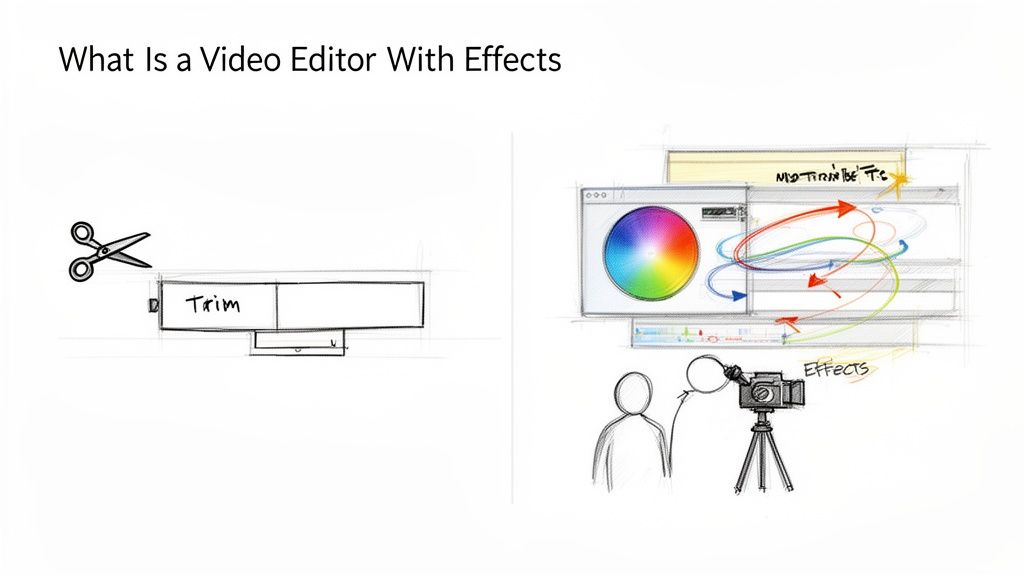
A simple video cutter is like a scrapbook—you can arrange your photos in a certain order. But a video editor with effects is more like a painter's canvas. It gives you the brushes, colors, and textures to turn a basic sequence into a compelling story. This is the leap from just capturing an event to crafting an experience for your viewer.
It's these creative tools that make content pop on platforms like YouTube, TikTok, and Instagram. Instead of just showing what happened, you can set the mood, direct attention, and make your message stick.
What Separates an Editor From a Trimmer?
The big difference comes down to one thing: the ability to manipulate the footage itself, not just its sequence. You're no longer just working with the video; you're working inside it. This unlocks a whole new level of polish.
A true video editor provides a suite of tools for adding layers of sophistication. We can break down the most essential ones into a few core categories.
Core Capabilities of Modern Video Editors
| Feature Category | What It Does | Common Use Case |
|---|---|---|
| Color Grading & Correction | Adjusting hues, saturation, and contrast. | Creating a warm, cinematic feel or matching the look of clips shot on different days. |
| Motion Graphics & Text | Adding animated titles, lower thirds, or callouts. | Introducing a speaker in an interview or displaying a call to action. |
| Visual Effects (VFX) | Applying stylistic filters, transitions, and overlays. | Adding a glitch effect for a tech video or a lens flare for a dramatic shot. |
| Layering & Compositing | Stacking multiple video tracks, images, and graphics. | Placing a logo watermark over footage or creating a picture-in-picture effect. |
These capabilities are what give videos that professional sheen, turning a simple recording into a polished final product.
A great video editor with effects doesn't just assemble clips. It empowers you to build a visual narrative from scratch, adding the kind of depth and style that grabs—and holds—an audience's attention.
Not too long ago, these features were locked away in expensive and complicated desktop software. But now, a new wave of browser-based editors has put this power into everyone's hands, no matter their budget or technical expertise. If you're looking to dive deeper, you can learn more about editing video with our in-depth guides. This shift has completely changed the game, allowing anyone to create incredible content right from their web browser.
Essential Effects and Features You Need to Know
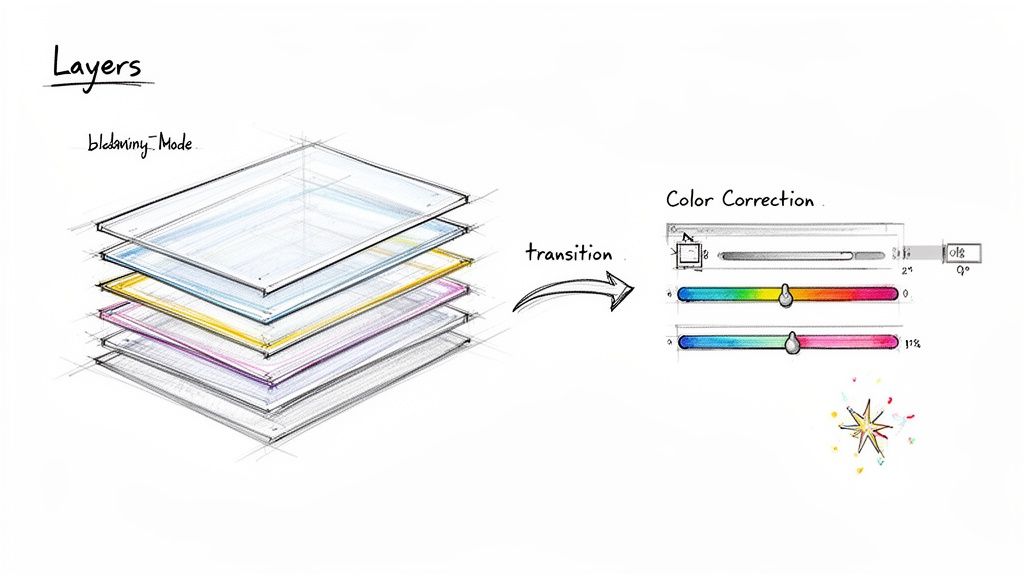
To really get the most out of a video editor with effects, you have to get comfortable with its creative building blocks. These are the fundamental tools behind nearly every slick, professional video you see, whether it's a cinematic vlog or a viral ad on TikTok.
The most important concept to wrap your head around is layering. Just imagine your video timeline is a stack of clear transparencies. The clip on the very top is what your audience sees, unless you make parts of it see-through to reveal whatever is hiding underneath.
It's a simple idea, but it’s the gateway to creating incredibly rich and complex visuals. You could place a logo on a top layer to create a subtle watermark, or stack animated text over a product shot to call out a key feature.
Mastering Creative Control with Core Effects
Once layering clicks for you, the real fun begins. You can start mixing and matching elements, and this is where tools like blending modes come into play. Blending modes dictate how layers interact. For example, a "Screen" mode will brighten the combined image, while a "Multiply" mode will darken it, perfect for creating deep, artistic shadows in a composite shot.
From there, you can dive into the specific effects that add that professional sheen to your work. Think of these as the must-haves in your creative toolkit:
- Color Correction and Grading: This is all about mood. Color correction is for fixing problems—like footage that’s too dark or has a weird color cast. Grading is the artistic part, where you apply a specific style, like the warm, golden glow of a sunset scene or the cool, sterile blues of a sci-fi flick.
- Transitions: These are the bridges that connect your clips. A simple cut is the default, but a well-timed cross-dissolve can beautifully suggest the passage of time. A slick wipe can guide the viewer’s eye exactly where you want it to go.
- Motion Graphics: This is a broad category that includes everything from animated text and titles to those slick lower-third graphics you see in interviews. It's how you make important information—like a powerful customer quote—pop off the screen and grab attention.
The real magic of a video editor isn't just slapping on a single filter. It's about how you weave together layers, color, and motion to build a visual narrative that truly serves your story.
Real-Time vs. Rendered Effects
It’s also crucial to understand how your editor actually processes these effects, as it directly impacts your workflow. Effects generally fall into two camps: real-time and rendered.
Real-time effects are exactly what they sound like—they’re applied instantly. You can tweak a setting and see the result immediately, without any waiting. Basic color adjustments or simple text overlays often work this way on modern machines, which is fantastic for making quick decisions and iterating on the fly.
Rendered effects, however, are the heavy lifters. These are the more computationally intense effects, like sophisticated motion tracking or 3D particle simulations. Your computer needs to crunch the numbers and "render" the effect onto each frame before you can watch it back smoothly.
Choosing the right video editor with effects is often about finding the right balance for your needs. Some tools are built for speed and real-time feedback, making them great for quick social content. Others pack more rendering muscle for high-end productions. Understanding this distinction helps you manage your time and your expectations, so you can spend less time watching progress bars and more time creating.
How AI Is Changing the Game in Video Editing
Artificial intelligence isn't just a buzzword anymore; it's a real tool that’s completely changing how we create videos. For the longest time, pulling off complex visual effects meant you needed a big studio budget and a team of technical wizards. AI is leveling the playing field.
Now, those tedious, time-sucking tasks are becoming automated. Instead of manually tracing an object frame by agonizing frame, AI can isolate a subject in a single click. This is a massive leap forward for things like smart object tracking, quick color correction, and especially background removal. It lets you, the creator, focus on telling a great story instead of wrestling with the software.
From Manual Drudgery to Automated Magic
The difference AI makes really hits home when you look at tasks that used to be a complete nightmare. A perfect example? Removing a video background without a green screen. That process, known as rotoscoping, used to be painstakingly manual. Now, specialized tools can do it almost instantly.
Take VideoBGRemover, for instance. It uses a sophisticated AI model to create incredibly clean cutouts, even with tricky details like fine hair or subjects moving around quickly. It can produce studio-grade transparent video all the way up to 4K resolution, literally saving you hours of work.
The interface is as simple as it gets—just drag, drop, and let the AI do the heavy lifting.
The whole point of a tool like this is to turn a frustratingly complex job into a single, effortless step.
The Rush to Embrace AI in Video
This move toward smart automation isn't just a niche trend; it's driving serious market growth. The market for AI in video creation is expected to jump from $7.50 billion in 2025 to $12.40 billion by 2030. What's fueling this? A massive demand for automated effects like background removal and motion tracking, which have become essential for everyone from social media managers to professional video editors.
AI tools aren't here to replace creativity—they're here to unlock it. By taking over the most technical and time-consuming parts of the editing process, they give anyone the power to create polished, high-quality content that once felt out of reach.
This kind of automation is a total game-changer, especially for creating content for platforms like Instagram Reels and TikTok. If you want to dive deeper, learning about mastering AI video effects for viral short-form content can give you a huge advantage. Finding the right tools is key, and you can explore more options in our guide to the best AI video editing software to see what fits your workflow.
Crafting Scroll-Stopping Effects for Social Media
Think of this as your practical guide to creating content that makes people stop scrolling. A good video editor with effects is more than a tool for just trimming clips; it's your command center for building visuals that grab attention on Reels, TikTok, and Shorts within the first few seconds.
Let's walk through three of the most popular effects and the smart way to pull them off.
The secret to all of these techniques is getting a clean separation of your subject from their background. It sounds simple, but this one step opens up a world of creative possibilities. Doing this by hand used to be a tedious, hours-long process, but AI tools have completely changed the game.
Background Replacement for a Professional Look
A clean, dynamic background can instantly transform a simple talking-head video or product shot from amateur to pro. Swapping out a messy office for a branded graphic or a stunning location gives you total control over your video's look and feel. It’s a favorite trick for course creators, marketers, and anyone who needs to look polished on camera.
Here's the quick workflow:
- Isolate Your Subject: First, run your video through an AI tool like VideoBGRemover. It will give you back a version of your clip with a perfectly transparent background.
- Layer in Your Editor: Next, pull both the new transparent video and your desired background (it can be an image or another video) into your editing software.
- Create the Scene: Place the transparent video on the top track (or layer) and your new background directly underneath it. Voilà!
The process is incredibly straightforward. You just upload, let the AI work its magic, and download the finished asset.
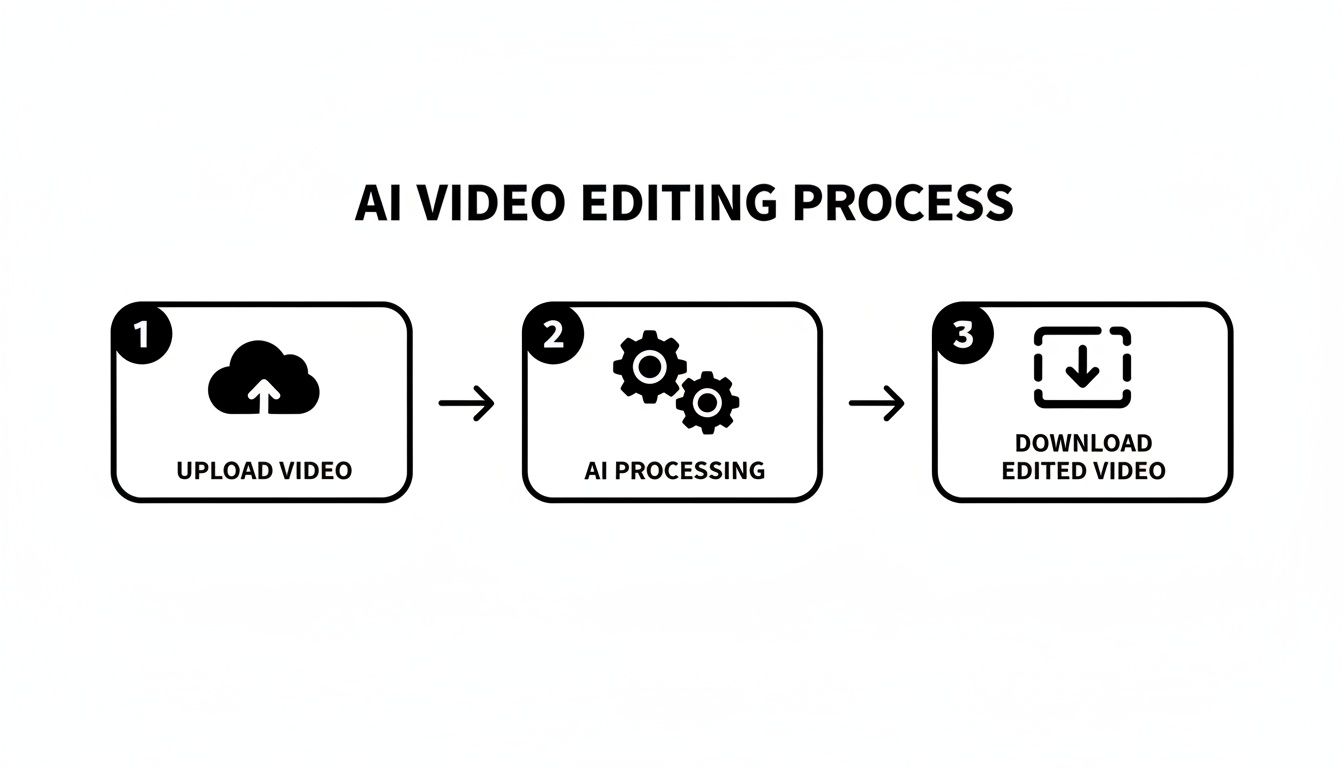
What used to be a highly technical task is now just a few clicks away, opening up advanced effects to everyone.
Creative Overlays for Engaging Reaction Videos
You've seen picture-in-picture overlays everywhere—they're essential for reaction videos, software tutorials, and gameplay streams. This effect places one video (like your facecam) on top of another (the main content). But instead of just sticking yourself in a clunky square box, removing the background first gives you way more creative freedom.
By starting with a clean cutout of yourself, you can blend into the main video much more naturally. It makes the whole thing feel more immersive and keeps your audience hooked.
The demand for these kinds of easy-to-use editing tools is exploding. The global video editing software market was valued at $3.09 billion in 2023 and is expected to climb to $5.13 billion by 2032. This growth is fueled by the relentless demand for short-form video, where effects are king. Creators are moving away from clunky, expensive software and toward more flexible, powerful tools.
Motion Graphics That Drive Action
Finally, let's talk about adding animated text and graphics to guide your viewer's eye and prompt them to act. Imagine an animated arrow pointing to the "subscribe" button, or text that pops up behind you as you're talking. This is where having a transparent video file is a huge advantage.
By placing your subject on the top layer, you can make graphics slide, fade, and animate behind them. This adds a sense of depth that makes your video feel dynamic and professionally produced. For a deeper dive, check out our guide on using motion graphics for social media.
Putting It All Together: Pro Workflows and AI
For anyone doing this for a living—video editors, course creators, motion designers—time is money. We know that efficiency and creativity have to go hand-in-hand. That's why weaving specialized AI tools into powerhouse programs like Adobe Premiere Pro or Final Cut Pro isn't just a clever hack anymore; it’s how modern video gets made. It’s all about pairing the surgical precision of your favorite editor with the raw speed of an AI assistant.
Think about it. Instead of losing hours to the soul-crushing task of manual rotoscoping, you can pass that job off to a tool built for that exact purpose. This approach lets you perfect each piece of your video puzzle separately before assembling the final picture. The idea isn't to replace your video editor with effects, but to give it a serious upgrade.
A Smarter Way to Composite
Picture a creative assembly line. You shoot your footage—anywhere you want, no green screen needed. Next, you run that clip through a tool like VideoBGRemover to instantly get a clean, transparent video asset. This perfectly isolated element is now a flexible building block ready for your main project.
This method is a lifesaver for any project where quality is non-negotiable. Once you have that transparent clip, picking the right export format is the final, crucial step to lock in that quality and transparency.
A professional video editor becomes exponentially more powerful when fed high-quality, pre-processed assets. By using specialized AI tools to handle the prep work, you can dedicate more of your time to storytelling, pacing, and creative effects—the things that truly elevate your work.
Choosing the Right File for the Job
To make sure your clip plays nicely with professional software, you need a format that supports an alpha channel. That’s just the technical term for the part of the file that tells the editor which pixels should be transparent. This is where a format like MOV ProRes 4444 really stands out. It keeps your quality flawless and makes sure your background is truly gone when you drop it onto your timeline.
Here are the go-to options:
- MOV ProRes 4444: This is the undisputed champ for high-quality video with transparency. It’s the industry standard for a reason, offering fantastic color and clarity.
- WebM with VP9 Alpha: A fantastic, smaller file size option for web projects that still gives you a full alpha channel.
- PNG Sequence: Essentially a flip-book of high-quality images with transparency. It’s perfect for short clips or intricate motion graphics work.
The need for these advanced workflows is absolutely exploding. The global video editor market was valued at $922 million in 2025 and is expected to hit $1.45 billion by 2035, all thanks to the massive growth in video content. This boom creates a huge demand for tools that can handle effects-heavy work for everything from TikToks to corporate training. In fact, creators have reported saving up to 60% of their time on tasks like background removal by using AI. You can dig into the expanding video editor market and its trends to see the numbers for yourself.
The trend is obvious: AI tools are becoming essential accelerators in our toolkits. To create truly polished work, understanding the modern ins-and-outs of service video production is key to telling a great story. By letting these smart tools handle the grunt work, you’re free to focus on what really matters—bringing your creative vision to life.
Frequently Asked Questions
Jumping into video editing, especially with all the cool effects and new tech, can feel a little overwhelming. You've got questions, and that's a good thing. Let's break down some of the most common ones with practical, no-fluff answers.
What’s the Real Difference Between a Filter and a LUT?
Think of a filter as a one-click style makeover for your video. It's like the presets you use on Instagram—it applies a specific, pre-made look instantly. Super easy, but what you see is what you get, with very little room to tweak it.
A LUT (short for Look-Up Table) is a much more professional tool. It’s like a precise recipe for your video's color. A LUT tells the software exactly how to change every single color value to achieve a specific, consistent cinematic look. This is how pros make sure footage shot on different days or with different cameras all feels like it belongs in the same movie.
To put it simply: a filter is a quick, ready-to-wear outfit. A LUT is the detailed color formula a professional uses to create a signature style.
Do I Really Need a Beast of a Computer for Video Editing?
It honestly depends on the path you take. If you go the traditional route with desktop software like Adobe Premiere Pro or Final Cut Pro, then yes, you'll probably want some serious firepower. Juggling high-resolution 4K footage and complex effects in real-time can bring a lesser machine to its knees.
But here's the good news: cloud-based tools have completely rewritten the rules. When you use a service like VideoBGRemover, the most demanding part of the process—like AI background removal—happens on their powerful servers, not your computer. This means you can get incredibly clean, professional results from a standard laptop. The heavy lifting is done for you in the cloud, so your machine just has to handle the final assembly.
How Can AI Background Removal Actually Make My Video Ads Better?
AI background removal is a game-changer for anyone making video ads. It gives you the power to instantly lift your product or spokesperson out of their original setting, all without needing a green screen.
This opens up a ton of creative doors:
- Complete Creative Control: Drop your subject into any background you can imagine. Want a sleek, branded environment or a wild, abstract design? You got it.
- Instant Professionalism: Your ads immediately look more polished and high-end. That slick production value grabs attention and builds trust with viewers right away.
- Save Time and Money: Forget booking studios or spending hours manually masking frames. This approach slashes production time and costs.
What Is an Alpha Channel, and Why Should I Care?
Okay, let's get slightly technical for a second, but it's important. A standard video file has three channels of information for color: Red, Green, and Blue (RGB). An alpha channel is basically a fourth, invisible layer that holds transparency data.
This alpha channel tells your video editor which parts of the image are solid, which are partially see-through, and which are completely transparent. It's the secret sauce behind almost every cool visual effect. When a tool removes the background from your video, it's the alpha channel that makes it truly transparent, allowing you to layer your subject perfectly over a new scene without any ugly outlines or boxes.
Ready to create professional-looking videos with perfect backgrounds in just a few clicks? VideoBGRemover lets powerful AI do the tedious work, freeing you up to be creative. Try it for free and see how simple it can be.
Tagged with
Ready to Remove Your Video Background?
See a free preview before you buy.
No credit card required • Free preview on every video