The 12 Best Free Video Background Remover Tools of 2025 (Tested & Ranked)
Discover the best free video background remover tools of 2025. Our hands-on review compares 12 top options for quality, features, and limitations.
Creating professional-looking video content often requires a clean, distraction-free background. Whether you're a marketer creating ads, a course creator recording tutorials, or a social media manager producing Reels and TikToks, removing a video's background can significantly elevate your production value. However, traditional methods required a green screen, complex software, and considerable editing skills.
A new wave of AI-powered tools now makes it possible to achieve high-quality results automatically, but navigating the options can be frustrating. Many platforms promise 'free' background removal only to surprise you with watermarks, low-resolution exports, or restrictive time limits. This guide cuts through that noise to find the best free video background remover for your specific needs.
We've rigorously tested and analyzed the 12 top options available today. Inside, you'll find a hands-on comparison of each tool's quality, ease of use, export formats (including crucial transparent background support), and the real-world limitations of their free tiers. We provide screenshots and direct links, so you can see exactly what each platform offers and where it falls short. Whether you're creating content for YouTube, social media, or live broadcasts, mastering video background removal can elevate your production quality. For those just starting out, understanding the essential gear and software for a streaming setup is a great foundational step. This list will help you find the perfect tool to complete that setup and make your next project a success.
1. Adobe Express – Video Background Remover
Adobe Express offers a polished and reliable video background removal tool integrated into its broader content creation suite. While the platform itself has a robust free tier, it's crucial to note that the one-click AI background removal for video is a Premium feature. This makes it a bit of an outlier in a list of free tools, but its inclusion is warranted for users already in the Adobe ecosystem or those considering an upgrade for a more comprehensive, all-in-one design platform.
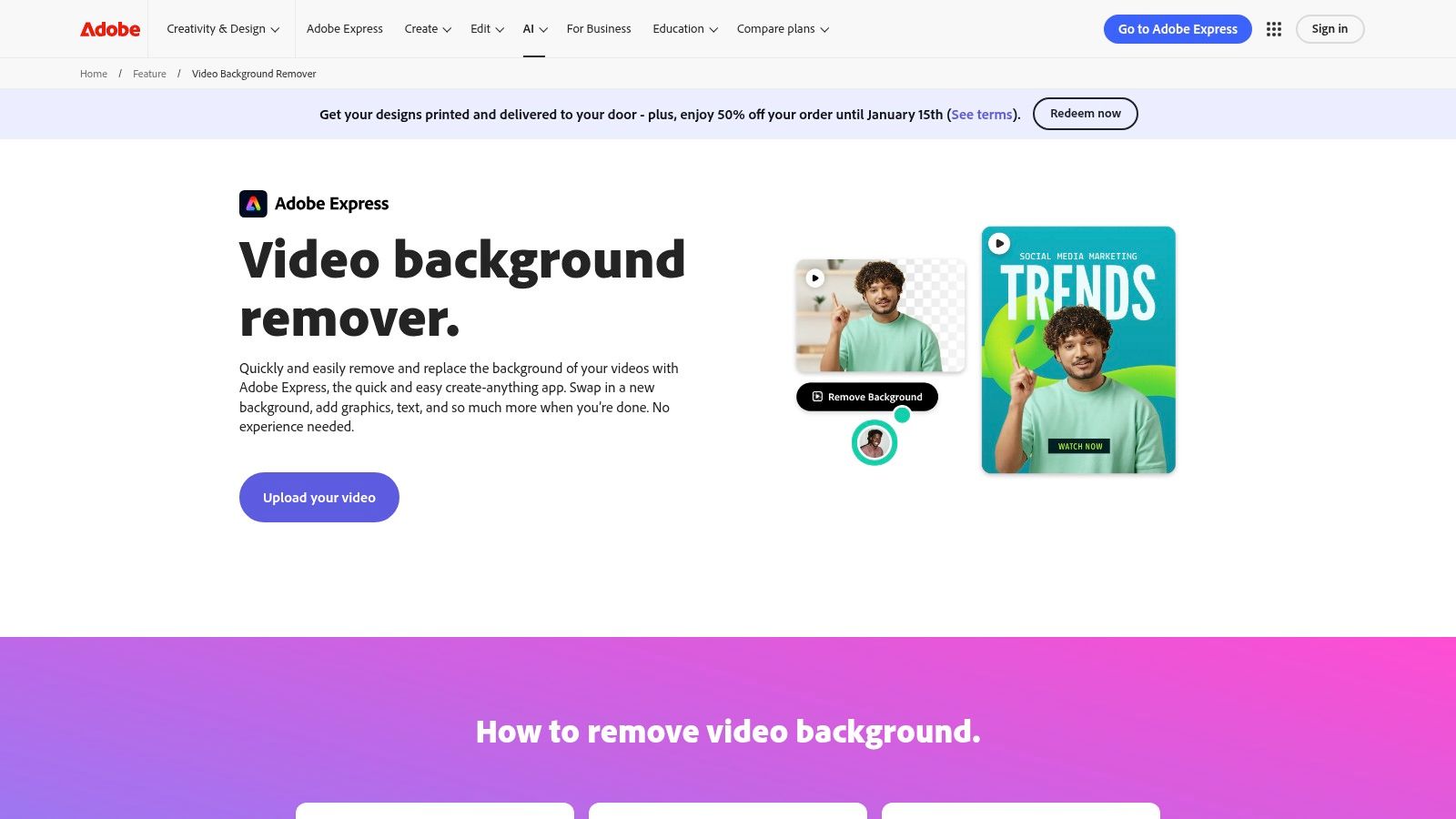
The workflow is exceptionally user-friendly. You upload your video directly into the Express editor, select it, and click the "Remove background" button. The AI processing is generally quick and accurate for well-lit subjects, delivering a clean cutout that rivals more complex software. This simplicity is its main draw for social media managers and content creators who need to produce high-quality short-form content like Reels or TikToks without a steep learning curve.
Key Features & Limitations
The primary strength of Adobe Express is its ecosystem. Once the background is removed, you can instantly leverage Adobe's vast library of stock photos, videos, and design assets to create a new scene. The platform's brand kit functionality also allows you to maintain consistency across all your creations. However, the tool is best suited for shorter clips due to processing limits within the app.
- Best Use-Case: Creating branded social media clips, quick product promos, and professional-looking talking-head videos for creators already invested in Adobe's suite.
- Pricing: Background removal for video requires the Adobe Express Premium plan.
- Website: https://www.adobe.com/express/feature/video/remove-background
2. Canva – Video Background Remover (Pro)
Canva has become a go-to platform for creators of all skill levels, and its video background remover is a powerful part of its Pro subscription. Similar to Adobe Express, this is a Premium feature, not available on the free plan. Its inclusion here is for the millions of users already subscribed to Canva Pro for its broader design capabilities, making it a highly convenient and effective tool within an ecosystem they already know and use daily.
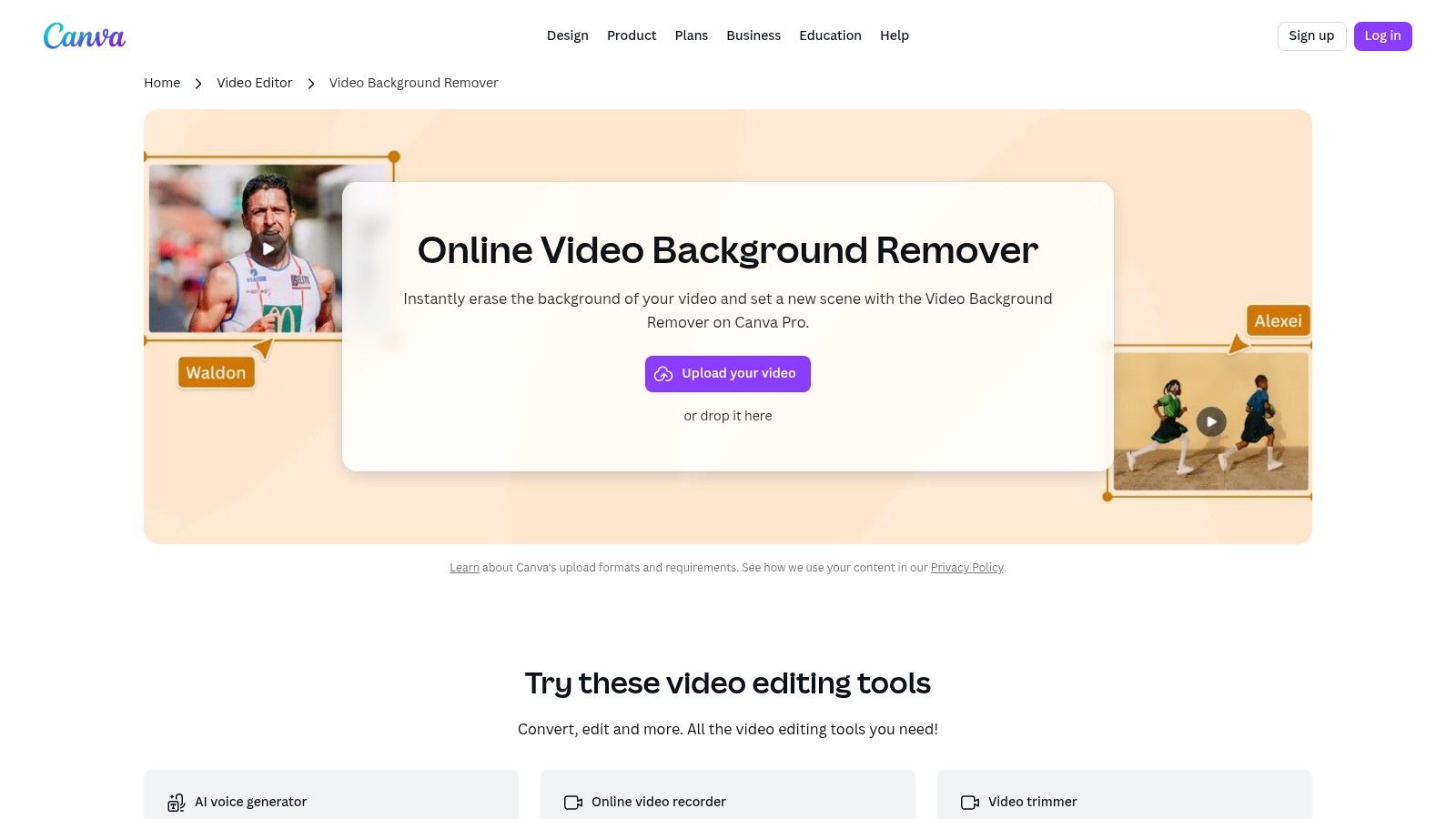
The process is designed for maximum simplicity. After uploading a video to the Canva editor, you simply select the clip, click "Edit video," and then "Background Remover." The AI handles the rest, typically delivering a clean result in seconds. This seamless integration is perfect for creators who want to drop a cutout of themselves directly into a social media template, add branded text, and publish without ever leaving the platform. The speed and ease of use are its biggest selling points.
Key Features & Limitations
Canva's key advantage is its all-in-one workflow. Once the background is gone, you gain immediate access to an enormous library of stock videos, graphics, and pre-designed templates. This makes it incredibly efficient to replace your background and finalize a complete design. However, the tool is designed for shorter clips, with an unofficial limit of around 90 seconds per video, making it unsuitable for long-form content without splitting the video into smaller chunks.
- Best Use-Case: Quickly creating polished social media content like Instagram Reels, TikToks, or YouTube Shorts using Canva’s extensive template library.
- Pricing: Background removal for video is only available with a Canva Pro subscription.
- Website: https://www.canva.com/features/video-background-remover/
3. CapCut (Web/Desktop/Mobile)
As the official video editor from ByteDance (the parent company of TikTok), CapCut is a powerhouse for social media content creation, offering an impressively capable free video background remover. Its deep integration with TikTok workflows and a simple, intuitive interface make it a go-to choice for creators aiming for viral content. Available across web, desktop, and mobile, it provides a seamless editing experience regardless of your device.
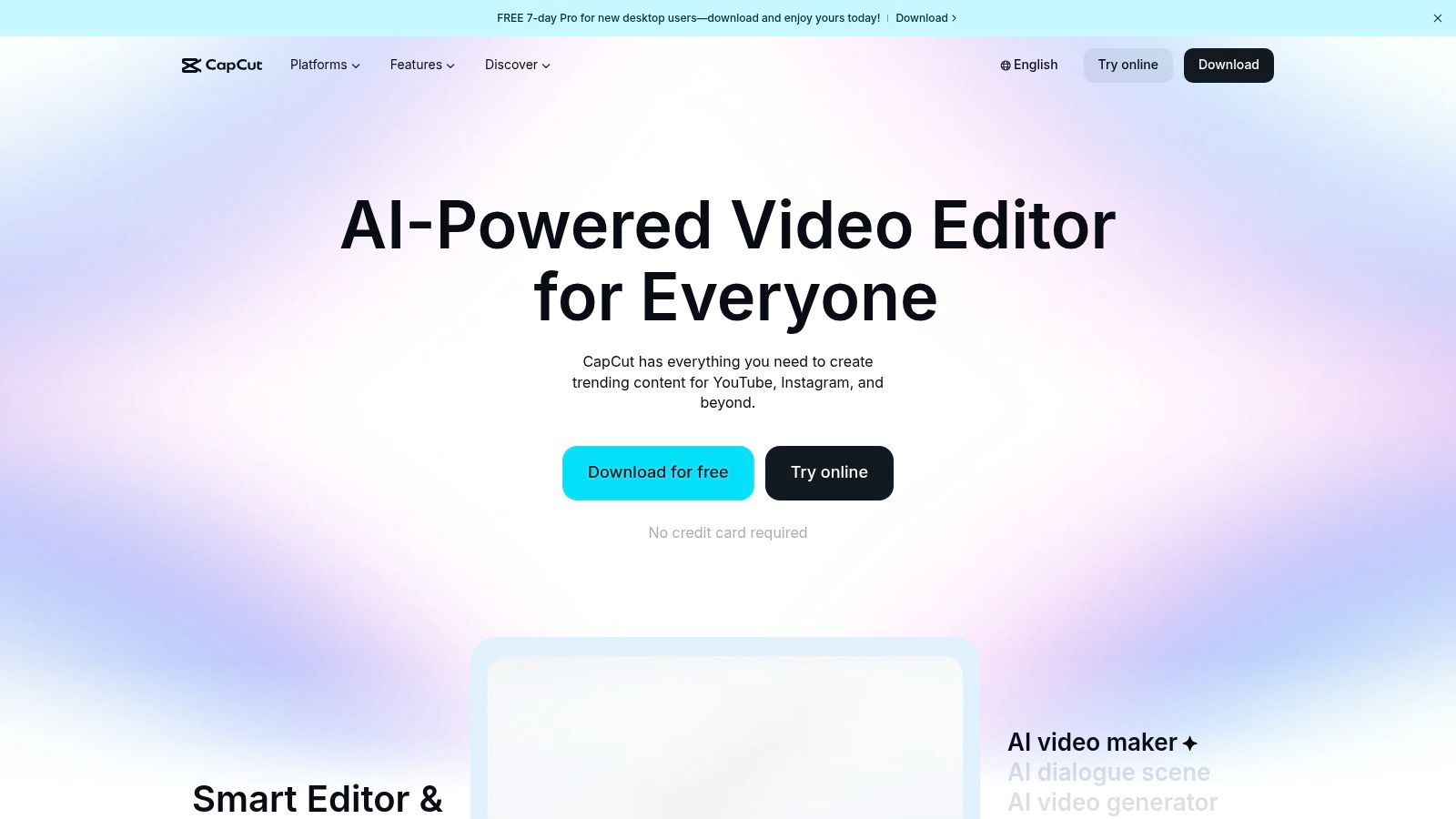
The platform offers two primary methods for background removal: an "Auto removal" feature powered by AI and a traditional Chroma Key tool for green screens. The AI tool is remarkably effective for a free offering, handling human subjects with clean edges and minimal artifacts. The user experience is straightforward, allowing you to remove the background with a single click, which is ideal for quick edits and fast-paced content schedules. However, be aware that feature availability, like watermark-free exports, can sometimes vary by region or be gated behind a Pro plan.
Key Features & Limitations
CapCut's strength lies in its accessibility and feature-rich free tier. Beyond background removal, you get access to a massive library of trending sounds, effects, and templates directly linked to TikTok. This makes it incredibly easy to jump on a new trend without leaving the editor. The main limitation is that its advanced features and highest-quality exports are often reserved for the CapCut Pro subscription, and its terms of service have occasionally raised concerns among professional creators.
- Best Use-Case: Creating trend-focused TikToks, Instagram Reels, and YouTube Shorts that require quick, effective background replacement without complex software.
- Pricing: Core background removal features are free, but some advanced capabilities and higher-quality exports may require the CapCut Pro plan.
- Website: https://www.capcut.com/
4. VEED.IO – Video Background Remover
VEED.IO positions itself as a comprehensive online video editing suite, and its background removal tool is a core part of that offering. While it excels as a one-stop shop for creating polished video content, it's important to clarify its pricing structure. The one-click AI background remover is a paid feature, but the free plan does include a green screen (Chroma Key) tool. This makes it a great option for creators using a physical green screen, but those needing automatic AI removal will need to subscribe.
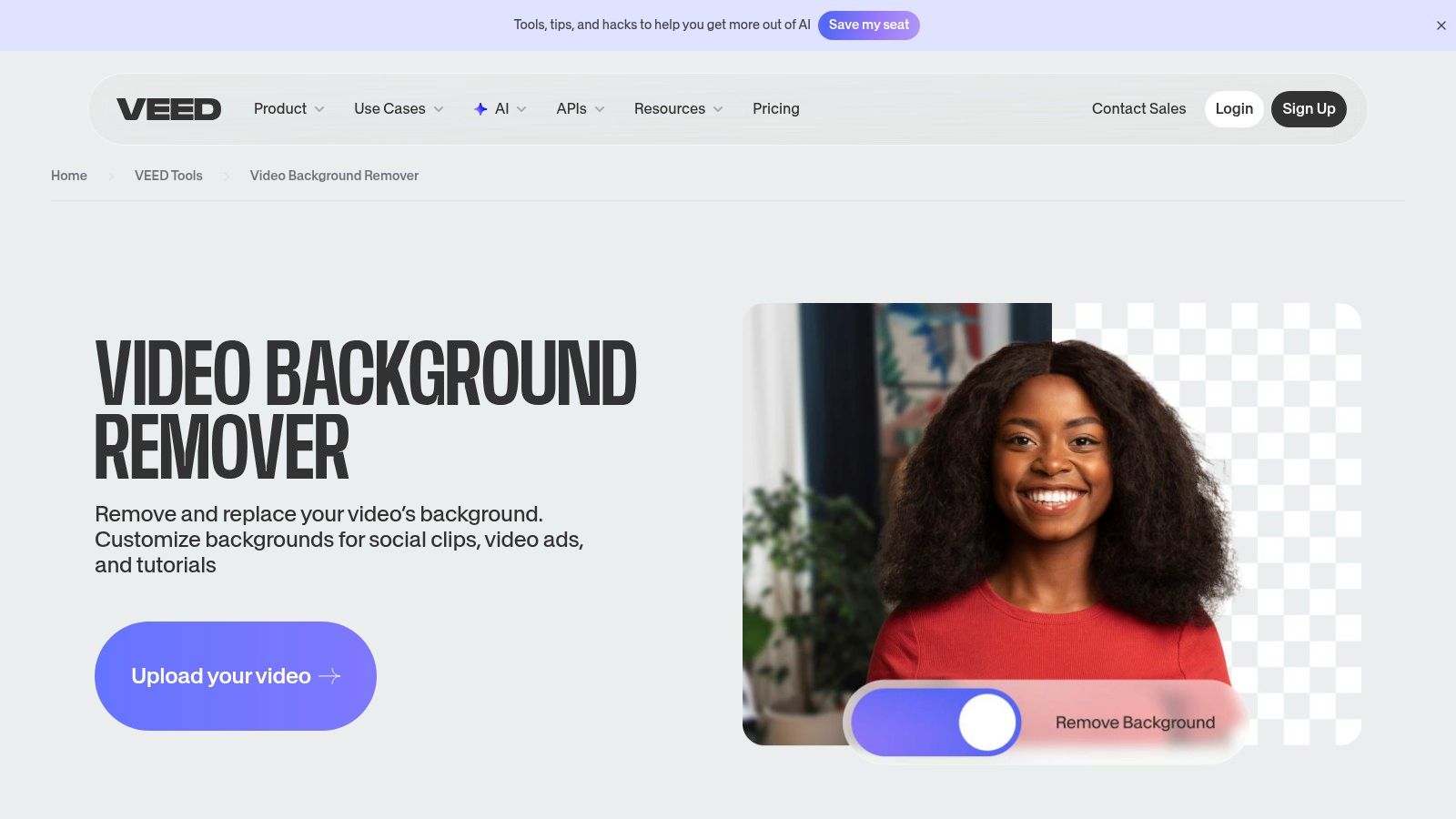
The platform is built for efficiency. After uploading a video, you can remove the background with a single click (on paid plans) and immediately access a full suite of editing tools. This includes automatic captions, audio cleaning, transitions, and stock media. This integrated workflow is its biggest advantage, eliminating the need to move a clip between different applications for various editing tasks. For more details on its capabilities compared to other services, you can explore a breakdown of the best free online video background remover tools.
Key Features & Limitations
VEED.IO stands out with its business-friendly features, including a background remover API for developers and team collaboration tools. This makes it scalable beyond individual content creation. The AI is trained specifically on people, so it performs best with clear human subjects. However, the requirement to upgrade for the main AI feature and some user feedback regarding pricing and credit systems are notable limitations for those seeking a completely free solution.
- Best Use-Case: Content creators who need an all-in-one editor for subtitles, audio, and background removal, as well as businesses looking for an API solution.
- Pricing: AI background removal requires a paid plan (Basic, Pro, or Business). The free plan includes Chroma Key.
- Website: https://www.veed.io/tools/video-background-remover
5. Kapwing – Remove Background effect
Kapwing is a comprehensive, in-browser video editor designed for speed and social media content creation. Its background removal tool is presented as a simple "effect" that can be applied with a single click, making it one of the most accessible options for beginners. The platform excels at integrating this feature into a broader workflow that includes templates, subtitling, and resizing for various social platforms, positioning it as a go-to for quick edits.
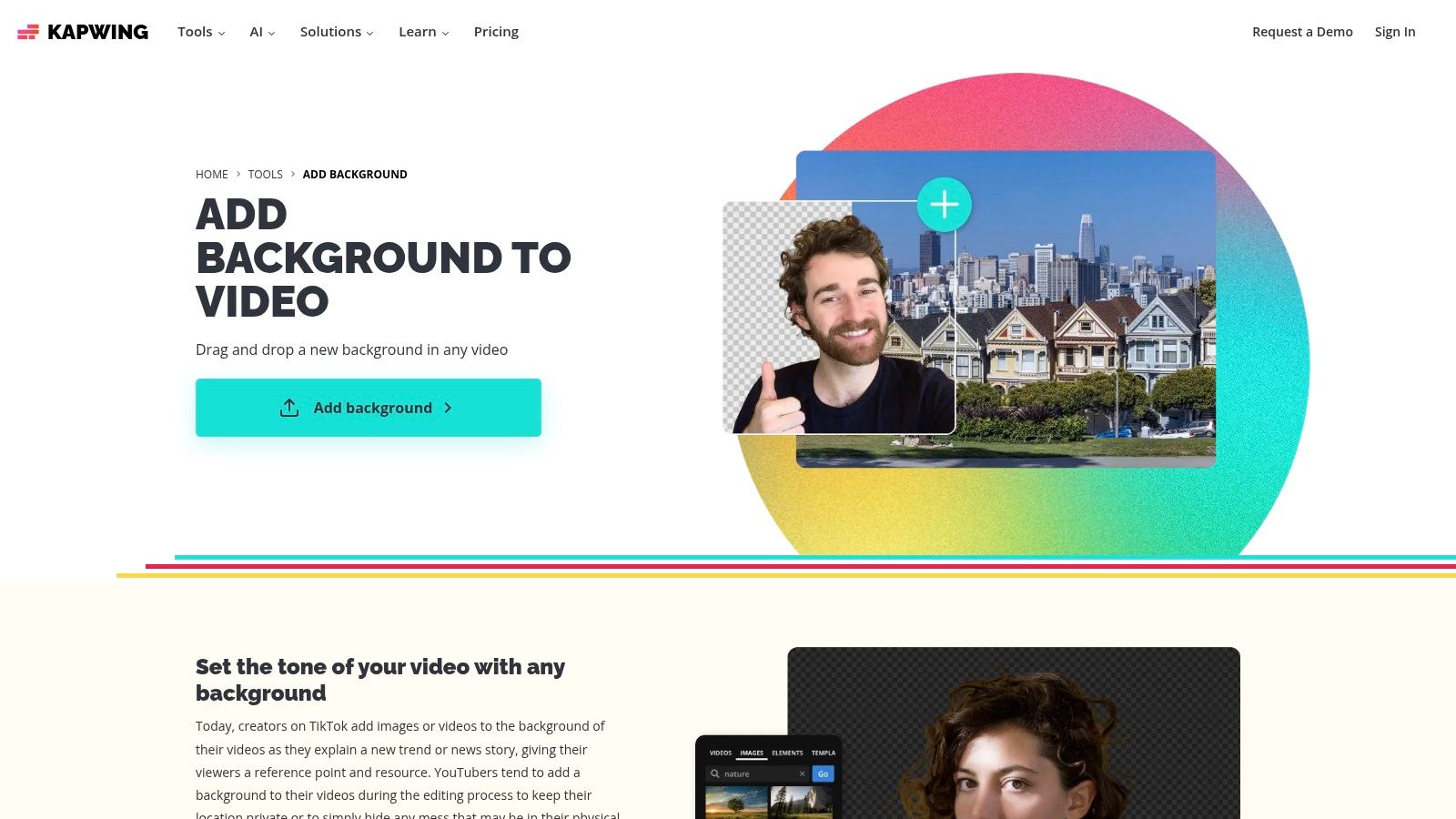
The user experience is straightforward: upload a video, navigate to the "Effects" tab on the right-hand panel, and select "Remove Background." The AI processes the video, automatically segmenting the person from their surroundings. Kapwing is particularly transparent about its free plan limitations; while the core feature is available, free exports will include a watermark and are subject to duration and quality caps. This honesty helps users quickly decide if the platform fits their immediate needs or if an upgrade is necessary.
Key Features & Limitations
Kapwing’s main advantage is its all-in-one editor, which lets you remove a background and immediately create a finished social media post without leaving the browser. However, for a truly clean, watermark-free export, upgrading to a paid plan is required. This makes the free version best for drafting concepts or for personal projects where a small watermark is acceptable.
- Best Use-Case: Creating quick, engaging social media content like TikToks or Reels where a watermark is not a major concern; ideal for users who need subtitling and templates in the same tool.
- Pricing: The background removal tool is available on the free plan, but exports include a watermark. The Pro plan removes the watermark and unlocks higher export quality.
- Website: https://www.kapwing.com/tools/add-background
6. Descript – Green Screen (AI video background remover)
Descript positions itself as a comprehensive audio and video editor, with its AI-powered background removal, called "Green Screen," being one of its standout features. This tool is less of a single-purpose remover and more of an integrated effect within a powerful editing suite. This makes it ideal for users who need to do more than just swap backgrounds, such as transcribing audio, editing via text, or adding captions, all within one application.
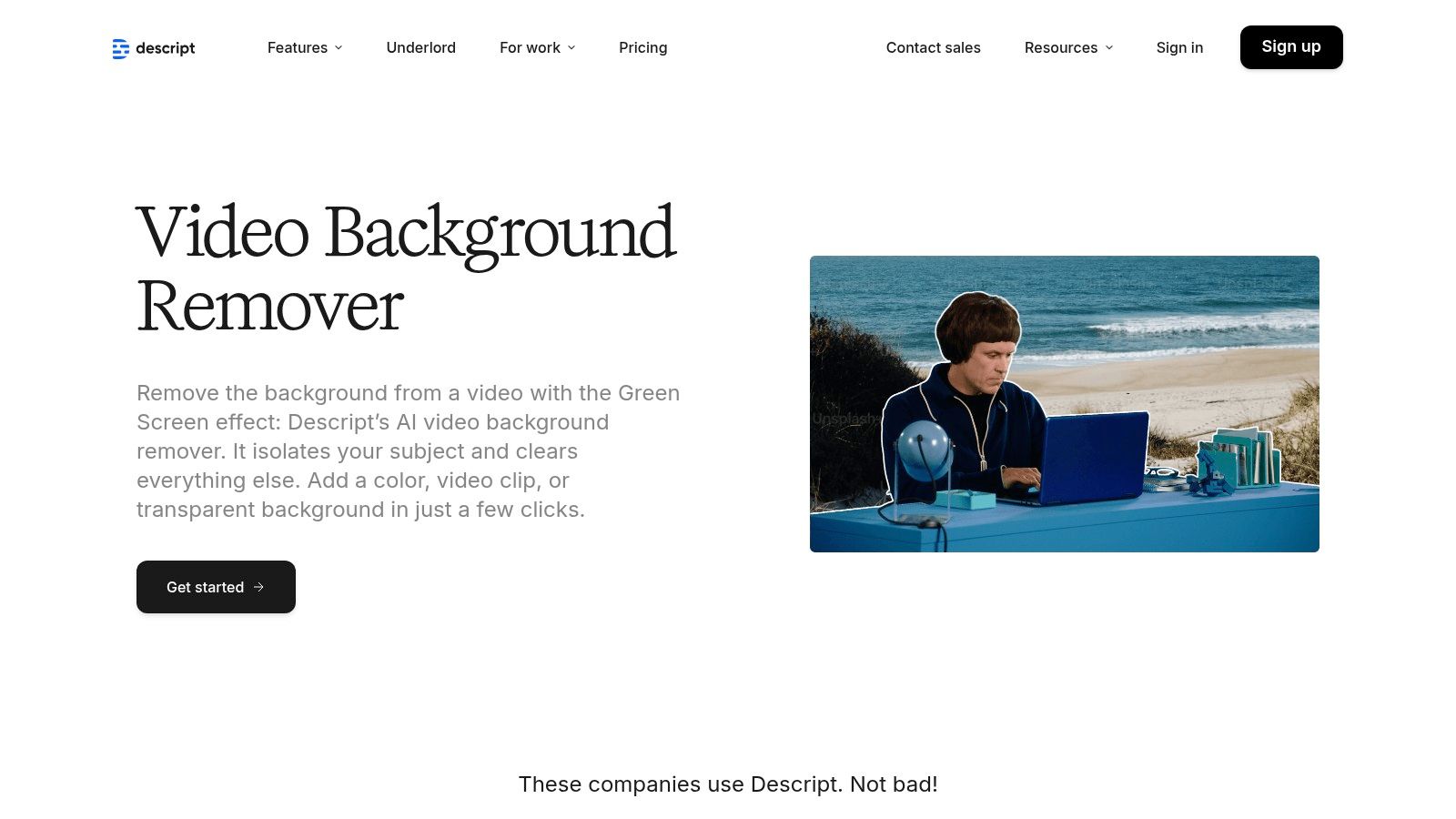
The workflow involves applying the "Green Screen" effect to a video clip in your timeline. The AI processes the footage, creating a clean matte. What makes Descript's approach unique is its resource management; the AI feature consumes "AI credits" or "media minutes" from your account's monthly allotment. The free tier includes a limited number of these, making it a great way to test the feature's quality before committing to a paid plan for more extensive projects. For those already using traditional methods, Descript's AI offers a powerful alternative; you can learn more about how it compares to traditional green screen setups.
Key Features & Limitations
Descript’s real strength lies in its all-in-one nature. After removing the background, you can immediately access its full suite of editing tools, including text-based video editing, automatic transcription, and AI-powered voice generation. This integrated environment streamlines the content creation process significantly. However, the limitation is tied to its credit system; free users can only process a small amount of footage before needing to upgrade, and higher-resolution exports like 1080p and 4K are reserved for paid plans.
- Best Use-Case: Podcast creators, educators, and YouTubers who need an end-to-end editing solution that includes robust transcription, captioning, and a capable free video background remover.
- Pricing: The "Green Screen" effect is available on the free plan but consumes a limited monthly allotment of AI credits/media minutes. Paid plans offer more credits and higher export quality.
- Website: https://www.descript.com/tools/background-removal
7. Runway – Change Backdrop / Remove from Video
Runway positions itself as a comprehensive AI magic toolkit for creators, and its background removal features are a core part of that offering. It provides two distinct tools: "Remove Background" for a standard green screen or transparent output, and "Change Backdrop," which allows users to replace the background using a text prompt. This generative approach makes it a powerful platform for rapid experimentation and creating highly stylized, surreal, or artistic video compositions that go beyond simple background replacement.
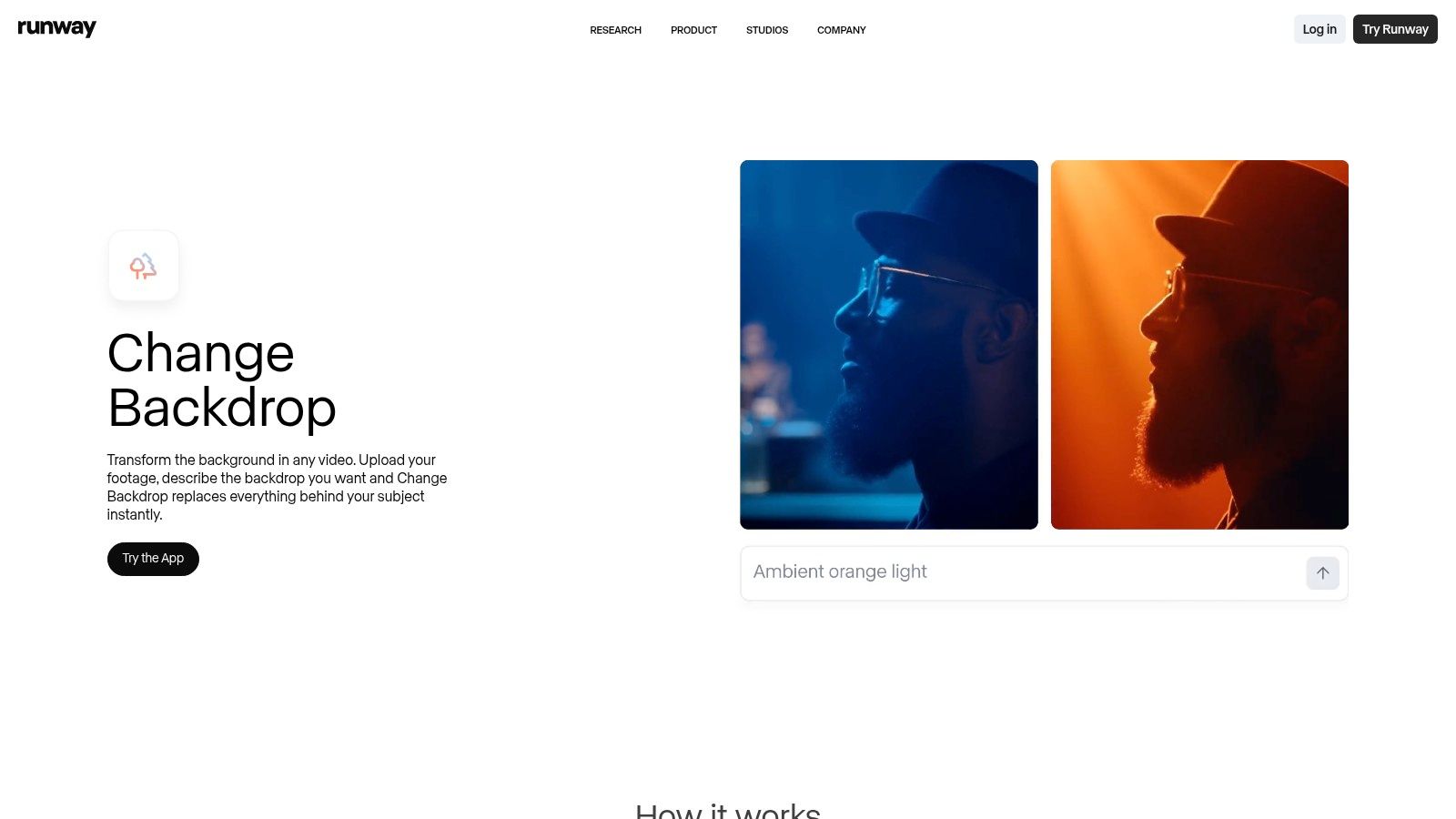
The platform operates on a credit-based system, where the free tier provides an initial allotment of credits to test its various AI tools. Each second of video processed consumes credits, which means free usage is limited to very short clips. The workflow is straightforward, but the real power lies in its integration with dozens of other AI video apps like relighting, inpainting, and text-to-video, making it a creative sandbox for those looking to push visual boundaries. You can learn more about AI-powered video background removal on videobgremover.com.
Key Features & Limitations
Runway's primary advantage is its all-in-one generative toolkit. Instead of just removing a background, you can transform the entire scene. However, this focus on advanced creative tools comes with limitations for simple, functional use. The free tier's credit and video length restrictions make it unsuitable for processing longer videos, and some users report occasional glitches with the tools.
- Best Use-Case: Creative professionals and artists experimenting with generative AI to create unique visual effects, short stylized social media clips, and conceptual video art.
- Pricing: Free tier offers limited credits. Paid plans provide more credits, higher export resolutions, and access to more advanced features.
- Website: https://runwayml.com/apps/change-backdrop
8. Microsoft Clipchamp – Green Screen Video Editor
Microsoft Clipchamp takes a more traditional, yet highly effective, approach to background removal by focusing on chroma key technology. Instead of AI-powered segmentation, it provides a powerful "Green screen" filter, making it an excellent free video background remover for anyone who can shoot their footage against a solid green, blue, or red background. As a full-fledged video editor included with many Microsoft accounts, it offers a complete workflow from editing to export without leaving the app.
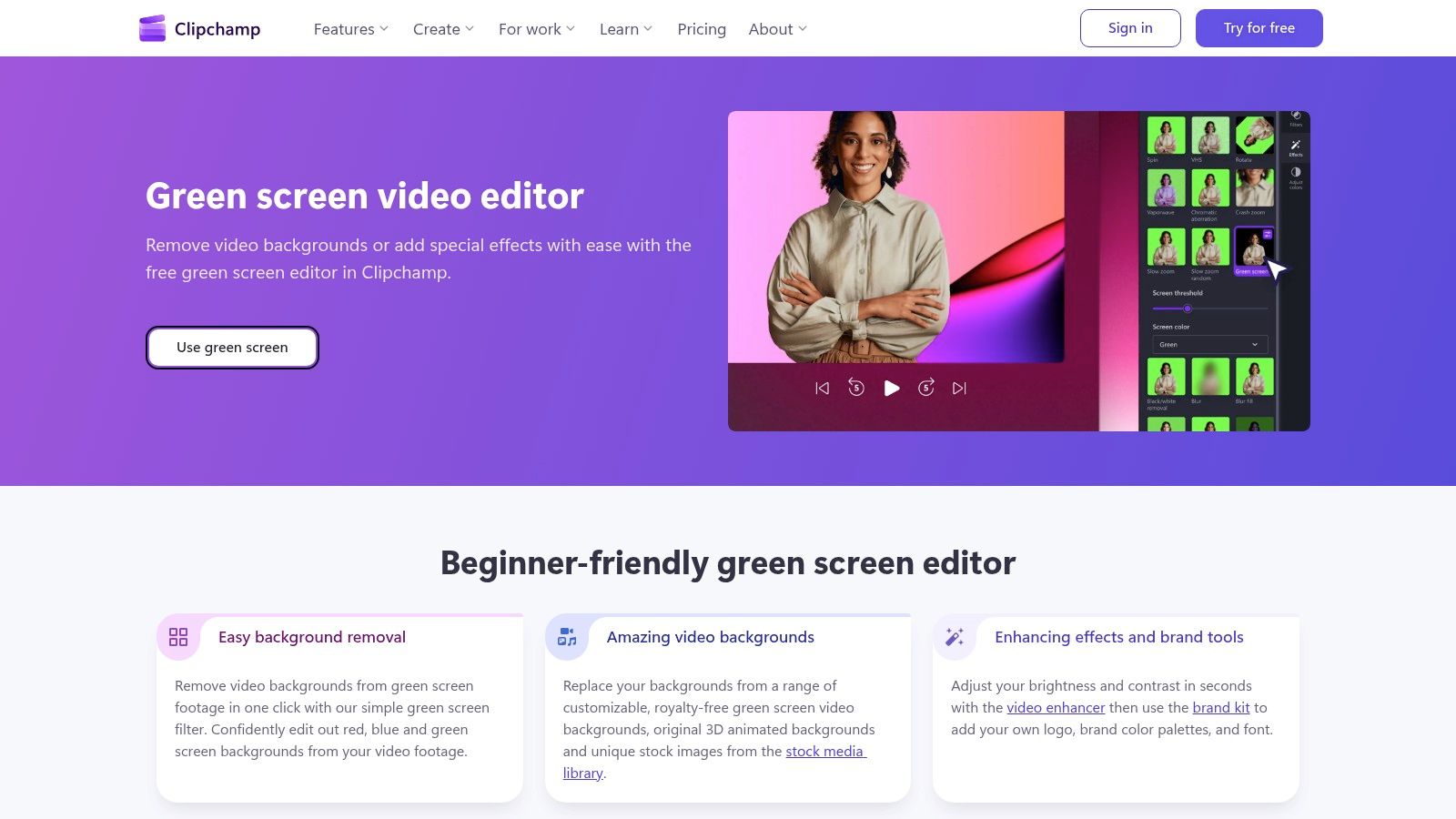
The process is simple: you place your new background clip on a lower track in the timeline and your green screen footage on the track above it. With the top clip selected, you apply the "Green screen" effect from the effects panel, and the background is instantly keyed out. The simplicity and reliability of this method are its greatest assets for creators who can control their recording environment. The free tier generously allows exports up to 1080p resolution.
Key Features & Limitations
Clipchamp's strength is its integration within the Microsoft ecosystem and its function as a straightforward video editor. You can easily trim clips, add text, and access a library of stock assets to complete your project. The major limitation is its core methodology; it is not designed for removing complex, natural backgrounds. If your video wasn't shot against a solid color screen, this tool will not be able to isolate your subject. However, it also includes a separate AI-based image background remover.
- Best Use-Case: Content creators, streamers, and educators who film with a physical green screen and need a simple, free editor to key out the background and finalize their video.
- Pricing: The green screen feature and 1080p exports are available on the Free plan.
- Website: https://clipchamp.com/en/features/green-screen-video-editor/
9. Flixier – Video Background Remover / Chroma Key
Flixier positions itself as a powerful, cloud-based video editor that integrates background removal as part of a larger creative workflow. It offers two distinct methods: a one-click AI video background remover and a traditional Green Screen (Chroma Key) tool for creators using a solid-color backdrop. This dual approach makes it versatile, catering both to users who need a quick fix for unprepared footage and those who plan their shoots for cleaner keying.
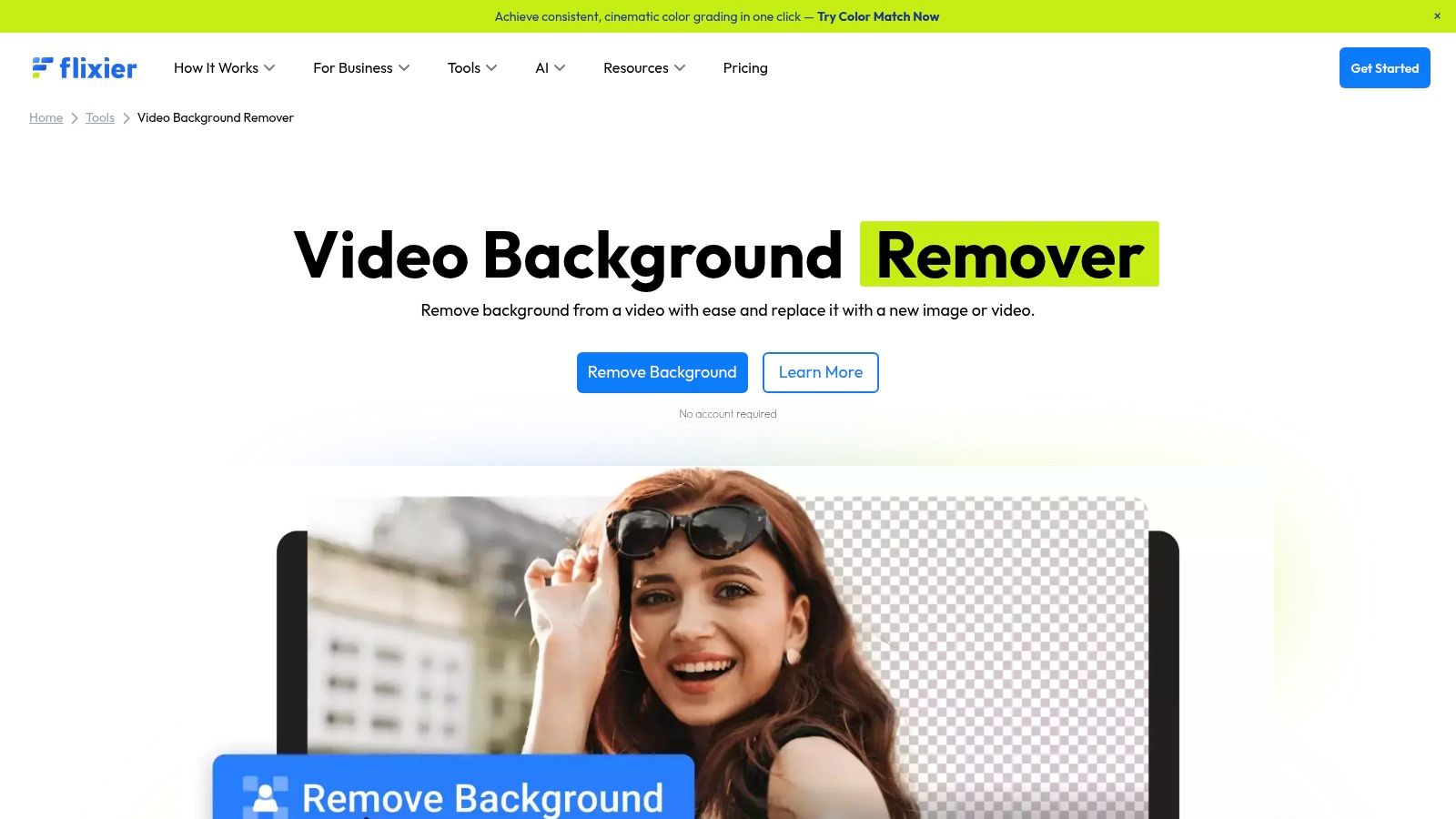
The platform's main advantage is its cloud-based processing. Since all the heavy lifting happens on Flixier's servers, you can achieve fast exports without needing a powerful computer or installing any software. This is a significant benefit for creators working on lower-spec machines or needing to edit on the go. Once the background is removed, you can immediately dive into its full editor to add text, transitions, and stock media.
Key Features & Limitations
Flixier’s strength is in its speed and comprehensive editing tools, which include features like auto-captions and access to stock libraries. However, the free plan has notable restrictions that users must consider. Exports on the free tier are limited to 720p resolution and will include a Flixier watermark. While this is sufficient for testing the platform, professional or commercial use will almost certainly require an upgrade to a paid plan for watermark-free, higher-resolution exports.
- Best Use-Case: Quick edits and background replacement for social media content or YouTube videos where cloud processing speed is a priority.
- Pricing: Free plan available with watermarks and 720p export limits. Paid plans remove these restrictions and add more features.
- Website: https://flixier.com/tools/video-background-remover
10. Media.io (Wondershare) – Remove Video Background Online
Media.io, a product from the well-known software developer Wondershare, offers a straightforward and accessible web-based tool for video background removal. This platform is designed for users who need a quick, no-install solution for processing short video clips. Its primary function is to automatically detect and separate a person from their background, providing a simple interface to either remove it completely or replace it with a new image or color.
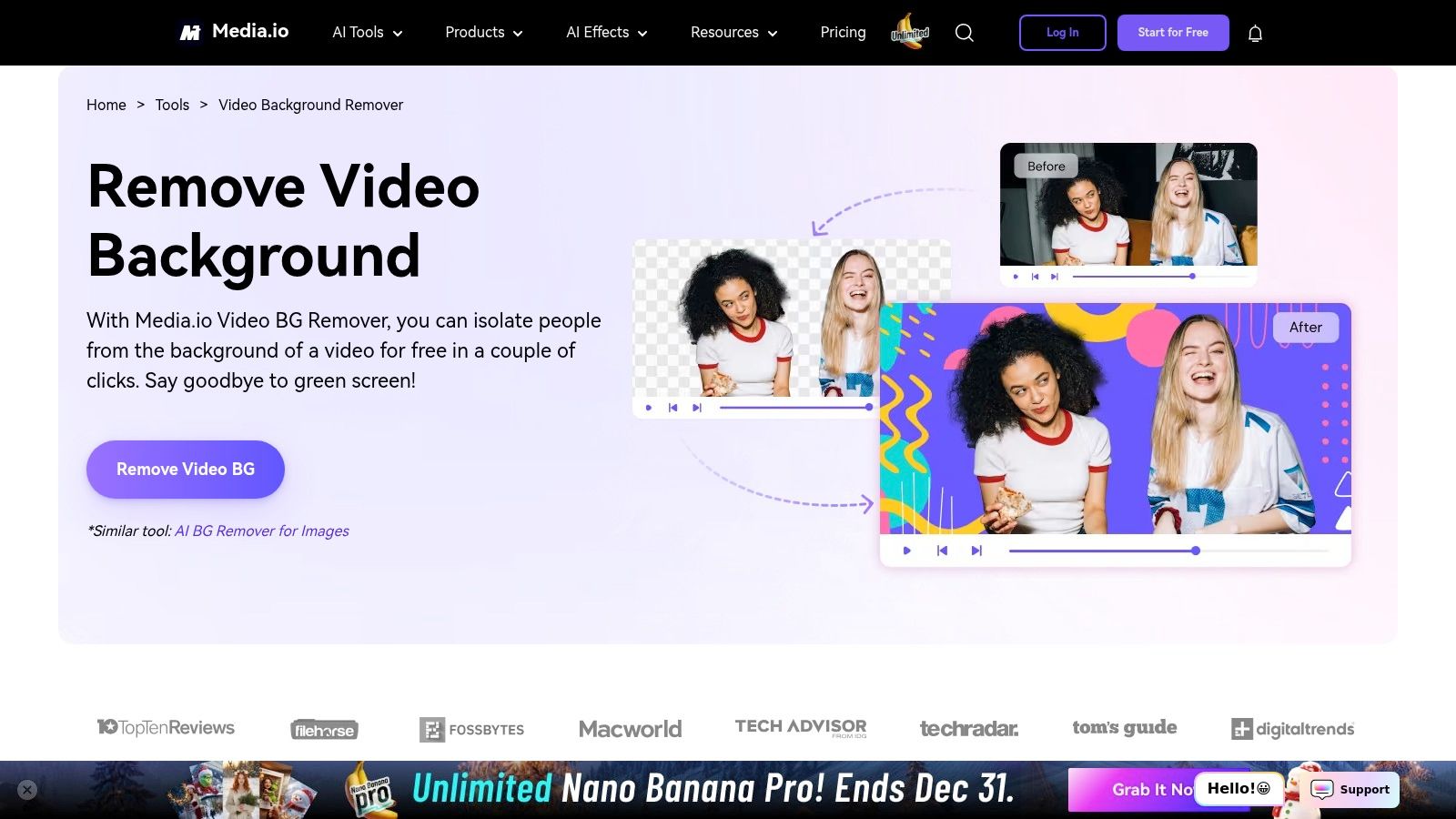
The user experience is built around simplicity: upload your video, let the AI process it, and download the result. This makes it an excellent choice for one-off tasks or for creators who are not technically inclined. Because it is part of the larger Media.io suite, users can easily access other online tools for video editing, audio enhancement, and file conversion, making it a convenient, if basic, multimedia toolkit for simple projects.
Key Features & Limitations
The main appeal of Media.io is its pure simplicity and speed for basic tasks. The AI is generally effective at identifying human subjects in clear footage, but its accuracy can diminish with complex backgrounds or fast motion. The free version has notable limitations on video length, file size, and output resolution, which positions it as more of a trial or a tool for very short, low-stakes content like GIFs or social media stickers. Upgrading to a paid plan is necessary for processing longer, higher-quality videos.
- Best Use-Case: Quick background removal for short social media clips, creating animated GIFs, or testing a concept before committing to more advanced software.
- Pricing: A free tier with limitations is available. Paid plans unlock higher resolution, longer video durations, and faster processing speeds.
- Website: https://www.media.io/remove-video-background-online.html
11. Vidyard – Free Video Background Remover (browser extension)
Vidyard takes a unique approach by offering a free video background remover integrated into a browser extension for Chrome and Edge. Rather than focusing on post-production editing, Vidyard’s tool works in real time as you record from your webcam. This makes it an ideal solution for sales professionals, educators, and support teams who need to create clean, professional-looking screen and camera recordings without the extra step of editing.
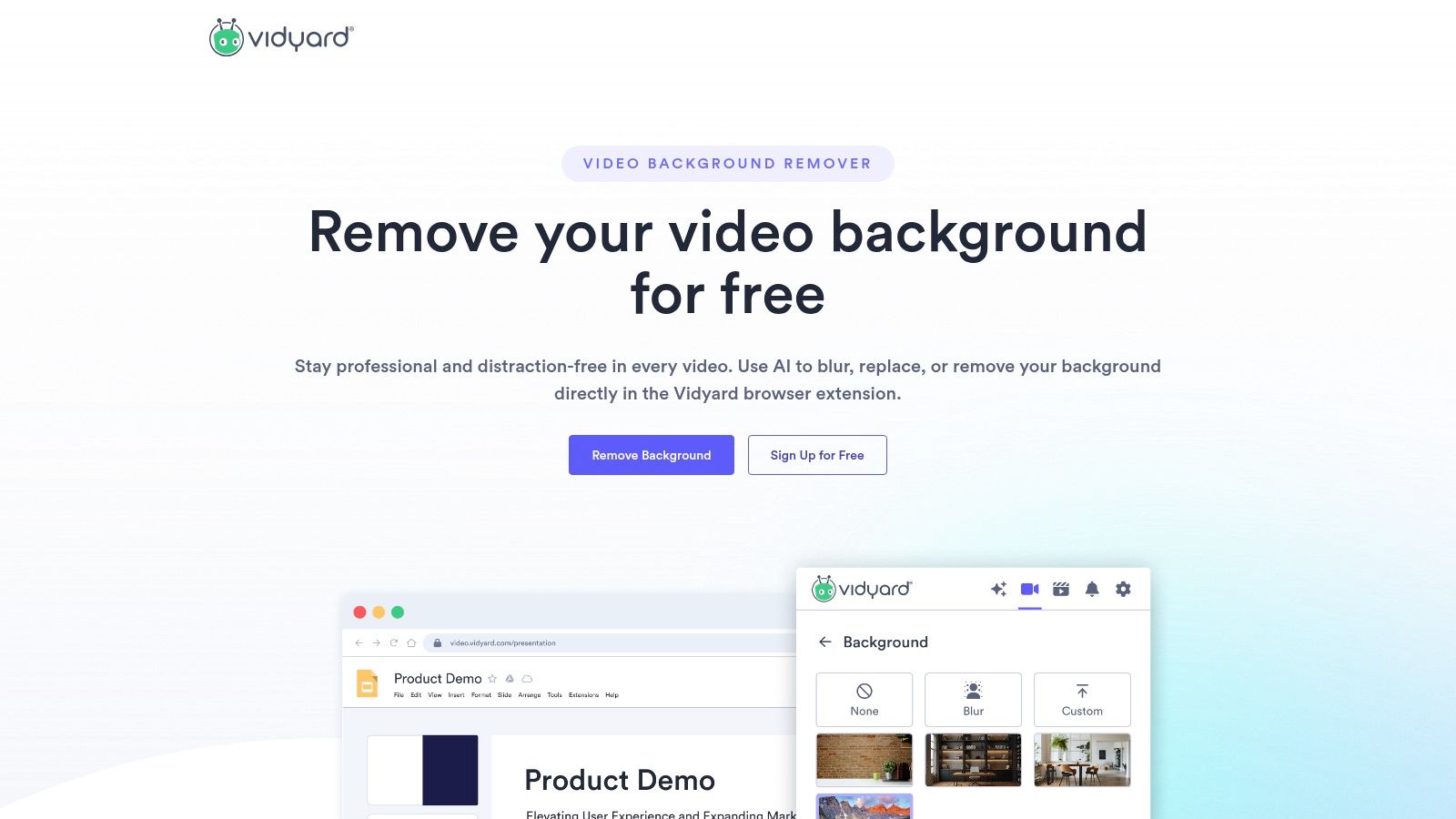
The workflow is designed for immediate use. Once the extension is installed, you can remove, blur, or replace your background with an image directly within the recording interface. This "on-the-fly" processing eliminates the need for a green screen or complex software, allowing users to quickly produce distraction-free video messages, product demos, or tutorials. The platform is built around sharing and analytics, making it powerful for business communication.
Key Features & Limitations
Vidyard’s primary strength is its seamless integration into the recording process, making it incredibly efficient for creating content that is meant to be shared quickly. It’s not a traditional video editor; you can't upload and edit existing footage. Instead, it perfects the capture process itself. Its focus is on live webcam recordings, so it lacks the timeline editing features found in other tools.
- Best Use-Case: Creating professional-looking sales outreach videos, quick software demos, and internal communications where a clean background is needed during the live recording.
- Pricing: The background remover is a free feature of the Vidyard browser extension.
- Website: https://www.vidyard.com/free-video-background-remover/
12. Fotor – Free AI Video Background Remover
Fotor offers a simple and accessible free AI video background remover that operates directly in your browser. It’s designed for quick edits, primarily targeting creators who need to process short, single-subject portrait videos without downloading any software. The tool's primary function is to automatically detect and remove the background, allowing users to then replace it with a solid color or a custom image, making it ideal for quick social media content touch-ups.
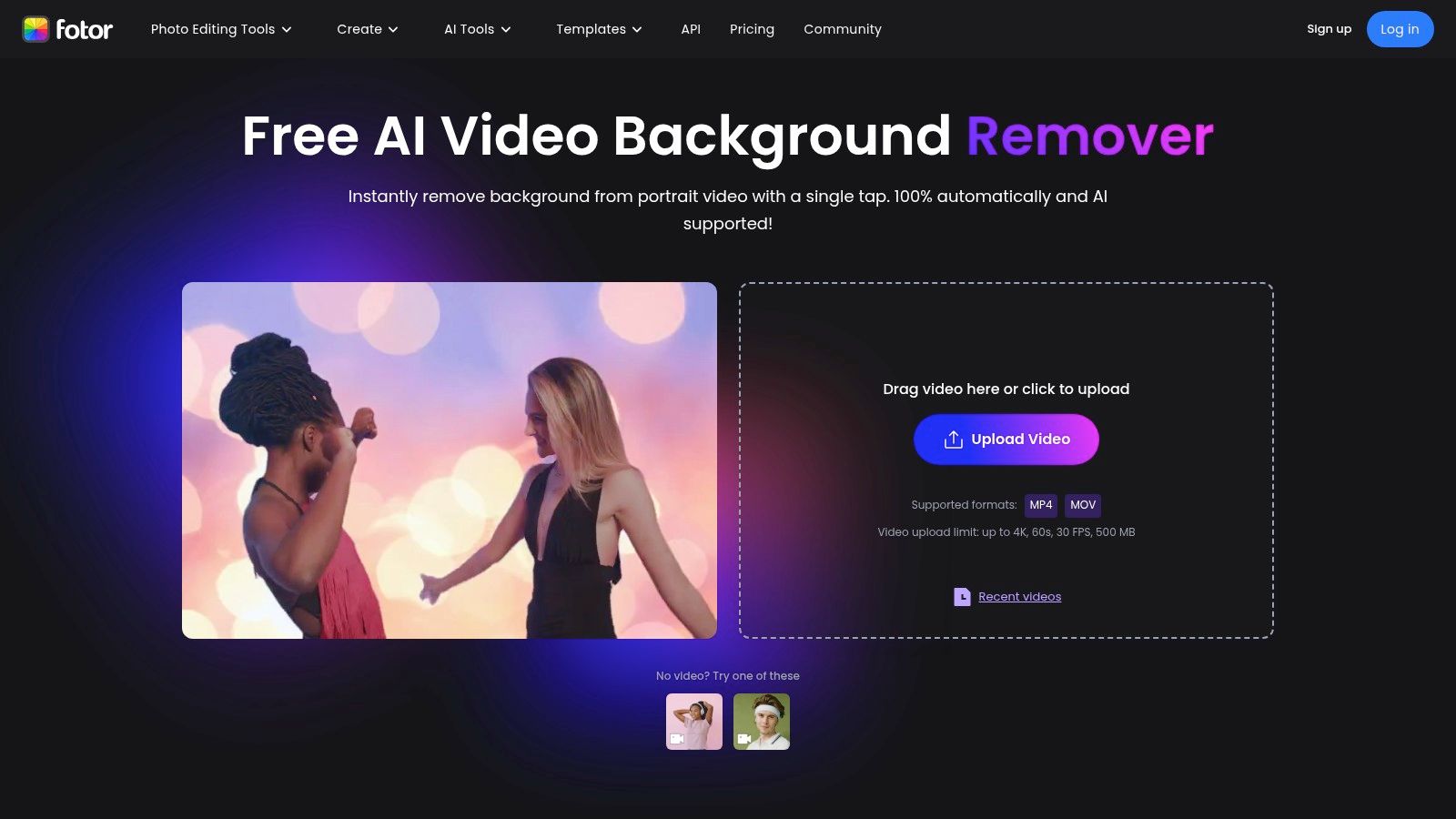
The user interface is minimalist and highly intuitive. You simply upload your clip, and the AI gets to work. While it handles single-subject, well-defined portrait footage effectively, it can struggle with more complex scenes or multiple subjects. The platform notes support for files up to 4K and around 60 seconds or 500 MB, but performance is best with shorter, optimized clips. For users seeking diverse AI-powered tools, exploring options like lunabloomai could unveil additional advanced features for seamless background removal.
Key Features & Limitations
Fotor’s strength lies in its speed and simplicity for a specific type of content. It’s a no-frills tool for creators who need a fast solution for talking-head videos or basic product showcases. The main limitation is its specialization in portrait footage; it is not designed for complex action shots or videos with intricate backgrounds. While the initial use is free, users may encounter limits on processing time or file size that encourage an upgrade for more extensive use.
- Best Use-Case: Creating simple social media stories, TikTok videos, or Reels with a single speaker where the background needs to be quickly replaced with a solid color or branded image.
- Pricing: Free to use with potential limitations; premium plans offer more features and higher limits.
- Website: https://www.fotor.com/video-background-remover/
Top 12 Free Video Background Removers — Feature Comparison
| Tool | Core features | Quality / Accuracy | Price / Value | Target audience | Unique selling point |
|---|---|---|---|---|---|
| Adobe Express – Video Background Remover | One‑click AI remove; stock & brand kits; browser & mobile | ★★★★ — reliable cuts | 💰 Premium feature (subscription) | 👥 Social creators, marketers, brand teams | ✨Deep Adobe ecosystem & Stock integration 🏆 |
| Canva – Video Background Remover (Pro) | One‑click remove; templates; ~90s clip support | ★★★★ — fast results | 💰 Canva Pro (subscription) | 👥 Non‑technical creators & social teams | ✨Huge template/stock library |
| CapCut (Web/Desktop/Mobile) | Auto remove + chroma key; multi‑platform apps | ★★★★ — capable on social clips | 💰 Free with gated Pro/region features | 👥 Mobile/social creators | ✨Integrations for TikTok/YouTube workflows |
| VEED.IO – Video Background Remover | AI people remover + chroma key; full editor; API | ★★★★ — business‑grade | 💰 Paid for AI removals; API pricing | 👥 Teams, businesses, devs | ✨Background remover API & team tools 🏆 |
| Kapwing – Remove Background effect | Auto person segmentation; templates; subtitles | ★★★ — easy & fast | 💰 Free→watermark; paid removes limits | 👥 Quick social editors | ✨Transparent watermark & limits policy |
| Descript – Green Screen (AI) | AI Green Screen; captions, multicam, TTS | ★★★★ — robust editor + cuts | 💰 Credit/minutes model for AI | 👥 Podcasters, educators, editors | ✨Transcription + TTS + editing in one 🏆 |
| Runway – Change Backdrop / Remove from Video | Prompt‑based replace; generative AI apps | ★★★★ — creative & experimental | 💰 Credit‑based; short run limits | 👥 VFX artists, creative teams | ✨Generative toolkit for stylized composites |
| Microsoft Clipchamp – Green Screen Editor | Chroma key (green/blue/red); templates | ★★★ — solid chroma key | 💰 Free tier available (1080p) | 👥 Users with green screens; Microsoft users | ✨Built‑in chroma key + Windows integration |
| Flixier – Video Background Remover / Chroma Key | Chroma & BG remover; cloud processing | ★★★ — fast cloud exports | 💰 Free→watermark/720p; paid upgrades | 👥 Editors needing fast cloud workflow | ✨Browser cloud processing, quick exports |
| Media.io (Wondershare) – Remove Video Background Online | Auto person/bg separation; replace options | ★★★ — simple for short clips | 💰 Free→limits on size/time; paid tiers | 👥 Casual users, quick edits | ✨Part of Wondershare suite; easy web flow |
| Vidyard – Free Video Background Remover (extension) | Real‑time remove/blur/replace during recording | ★★★★ — great for live webcam | 💰 Free browser extension | 👥 Sales, demos, educators (webcam) | ✨Real‑time capture + sharing links 🏆 |
| Fotor – Free AI Video Background Remover | Portrait AI remove; replace w/ color/image; up to 4K/60s | ★★★ — good for single‑subject clips | 💰 Free to start; time/size limits | 👥 Portrait creators, social clips | ✨4K support for short portrait videos |
Your Next Step to Flawless Video
Navigating the landscape of free video background remover tools reveals a powerful, accessible ecosystem for creators at every level. We've explored a dozen powerful options, from the integrated convenience of Adobe Express and Canva to the mobile-first editing prowess of CapCut. Each tool offers a unique entry point into the world of chroma keying and AI-driven background removal, democratizing what was once a complex, resource-intensive post-production task.
The journey has shown us that for many common use cases, a free tool is not just a starting point; it's the complete solution. Whether you're a social media manager creating a quick promotional Reel with VEED.IO, a course creator using Descript’s green screen effect for a tutorial, or a UGC creator batching content in Kapwing, the barriers to creating professional-looking video have been significantly lowered. The key takeaway is that you no longer need a Hollywood budget or a dedicated editing suite to achieve a clean, polished look.
Recapping the Key Takeaways
As you decide which tool best fits your workflow, remember these crucial insights gathered from our hands-on testing:
- Platform Matters: Your primary creation environment dictates the best tool. CapCut shines on mobile, while Microsoft Clipchamp offers a solid, native experience for Windows users. Browser-based tools like Flixier and Media.io provide incredible flexibility, accessible from any machine.
- The "Free" Spectrum: "Free" often comes with limitations. Be mindful of watermarks, resolution caps (often 720p or 1080p), and export length restrictions. Tools like Runway offer cutting-edge AI features but gate their full power behind credit systems or subscriptions.
- Chroma Key vs. AI: The two core technologies have distinct strengths. Traditional green screen editors like Clipchamp and Flixier offer precise control when you have a well-lit, uniform background. In contrast, AI-powered removers in CapCut, Runway, and Descript are magical for imperfect, real-world footage, but can sometimes struggle with fine details like hair or fast motion.
- Workflow Integration is Everything: The best free video background remover is often the one already in your toolkit. If you live in the Canva or Adobe Express ecosystem, their native removers, despite some limitations, offer an unbeatable, streamlined experience that saves significant time and effort.
How to Choose the Right Free Tool for You
Making the final decision comes down to matching a tool's capabilities with your specific project demands. Don’t just pick the first one on the list; consider your end goal.
For the Social Media Creator focused on TikToks and Reels, speed and mobile accessibility are paramount. CapCut is the undisputed champion here, offering robust AI removal directly on your phone, complete with trending templates and effects.
For the Educator or Marketer producing tutorials or webinar content, clarity and reliability are key. If you're using a physical green screen, Microsoft Clipchamp provides a straightforward, effective chroma key tool. If you're forgoing the screen, Descript's AI Green Screen offers impressive results for talking-head videos.
For the Aspiring Video Editor who needs more creative control, including transparent background exports for compositing in other software, the decision becomes more nuanced. While some free tools hint at this, it’s often a premium feature. This is the point where your needs may start to outgrow the free offerings. When you require pixel-perfect cutouts, 4K resolution, and the flexibility of an alpha channel for professional projects, it's time to evaluate a more specialized solution.
Ultimately, these free tools are your training ground. They allow you to experiment, learn the principles of background removal, and produce high-quality content without financial commitment. Use them to discover what works, identify the limitations you can't tolerate, and clarify what professional features you truly need to elevate your work to the next level.
When you've mastered the basics with free tools and are ready for unparalleled precision, quality, and batch processing without watermarks or resolution limits, a dedicated solution is your next logical step. For professional-grade transparent exports and flawless 4K results, explore what VideoBGRemover can do for your workflow. Visit us at VideoBGRemover to see how our specialized AI can unlock your full creative potential.
Tagged with
Ready to Remove Your Video Background?
See a free preview before you buy.
No credit card required • Free preview on every video