The 12 Best AI Video Editing Software Tools for 2026 (Our Top Picks)
Discover the best AI video editing software for every use case. We review 12 top tools for creators, from text-based editing to background removal.
Video editing has shifted from tedious, manual tasks to a creative partnership with artificial intelligence. What once took hours-like transcribing interviews, removing backgrounds, or finding the perfect b-roll-now happens in minutes. Today's AI video tools act as intelligent assistants, handling the technical heavy lifting so you can focus on storytelling. From automating captions and cleaning up audio to generating entire scenes from a text prompt, the right software can dramatically speed up your workflow and elevate your final product.
But with so many options, which tool is right for you? This guide cuts through the noise to evaluate the 12 best AI video editing software platforms available today. We break down their strengths, weaknesses, and ideal use cases for specific creators, including:
- Social Media Marketers creating engaging product promos and UGC ads.
- Content Creators producing high-volume content for Reels, TikTok, and YouTube Shorts.
- Educators and Trainers developing polished tutorials and webinars.
- Professional Editors who need specialized tools like transparent exports for complex composites.
This evolution isn't just limited to video; as AI continues to advance, the market is seeing a surge in powerful applications across different fields, including some of the best AI automation tools that can streamline entire business workflows.
In this comprehensive resource, you will find a detailed analysis of each platform, complete with screenshots and direct links to help you make an informed decision. We'll explore everything from text-based editing in Descript to the advanced rotoscoping in DaVinci Resolve, helping you find the perfect software to match your creative needs and technical skill level. Let's dive in.
1. VideoBGRemover
Best For: Automated Background Removal & Transparent Exports
VideoBGRemover sets a high standard for single-purpose AI video editing tools, establishing itself as the premier solution for automated background removal. It excels by focusing on one critical task: liberating subjects from their backgrounds without a green screen, manual rotoscoping, or complex keying. This platform is not a full-suite editor but a specialized, browser-based utility that generates production-ready assets with remarkable precision, making it an indispensable first step in many professional and social media workflows. Its AI model is meticulously trained to handle challenging details like hair, motion blur, and subtle shadows, producing clean, frame-by-frame cutouts that rival traditional methods.
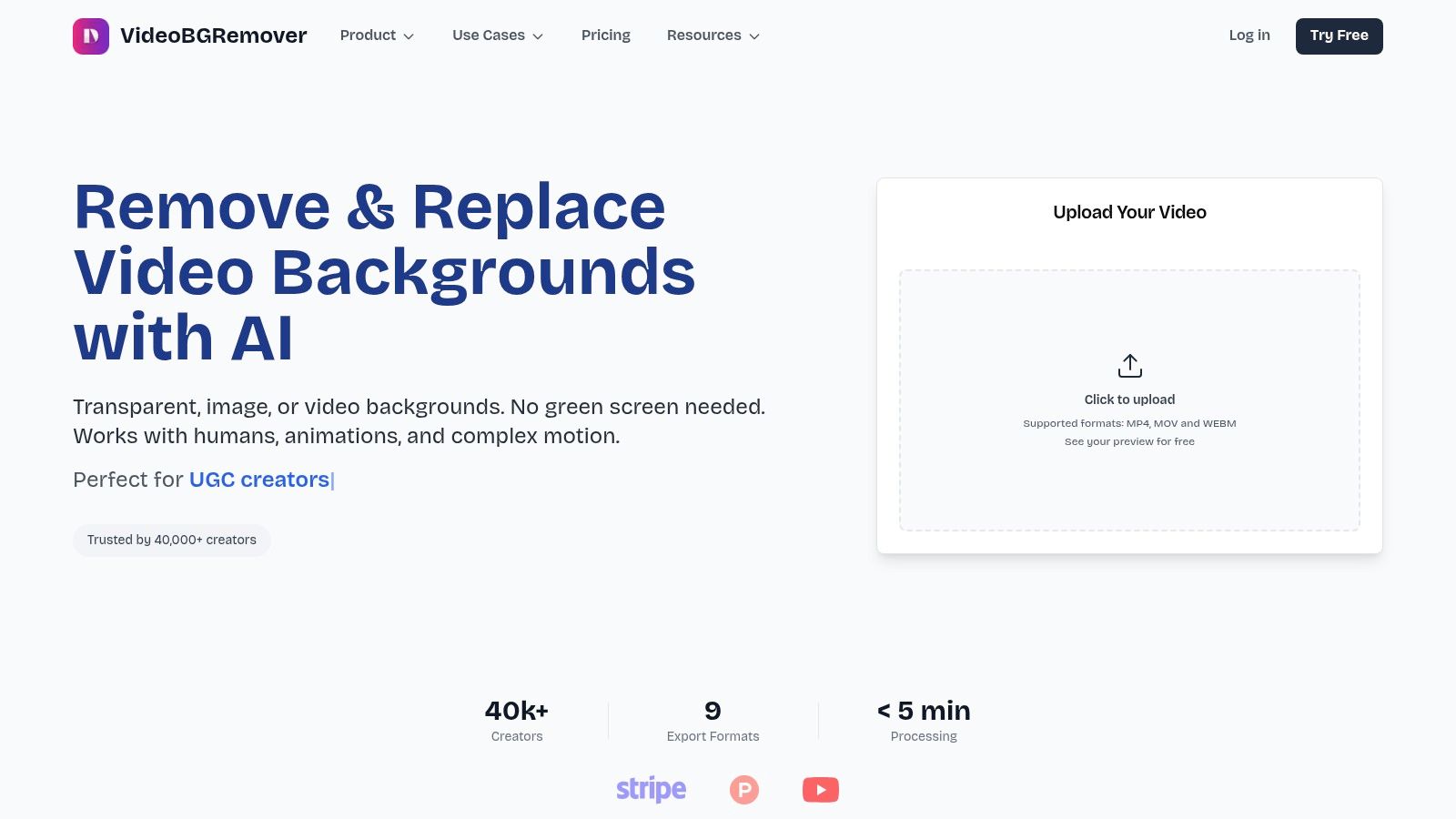
The platform’s power lies in its combination of high-end output quality and an exceptionally low-friction user experience. Creators can upload and preview any video entirely for free without signing up, a level of transparency that builds immediate confidence. The true standout feature is its professional-grade export capabilities. VideoBGRemover is one of the few online tools that can output in formats like Apple ProRes 4444 and WebM VP9 with alpha channels, which are essential for maintaining transparency in professional editing software like Premiere Pro and Final Cut Pro.
Key Features and Workflow
- AI-Powered Precision: The core technology provides clean edges on complex subjects, effectively eliminating the need for a physical studio setup for many projects. If you want to understand the technology better, you can explore this detailed guide on how an AI video background remover operates.
- High-Resolution & Long-Form Support: It processes videos up to 4K resolution and 120 minutes in length, accommodating everything from short-form social clips to full-length webinars and courses.
- Flexible Export Options: Beyond professional codecs, it offers PNG sequences, GIFs, and even Lottie JSON files, making it versatile for motion graphics, app UIs, and web content.
- Frictionless Pay-As-You-Go Model: Users purchase credits that never expire and only pay to export full-quality files. This is ideal for freelancers and teams with fluctuating project needs, with pricing typically ranging from $0.50 to $2.00 per minute of video.
Pros and Cons
| Pros | Cons |
|---|---|
| No green screen required; AI handles complex details like hair and motion. | High-quality or transparent exports require credits; the free preview is for evaluation only. |
| Professional export formats (ProRes 4444, WebM alpha) for seamless integration. | Processing time can be lengthy for very long 4K videos or complex scenes. |
| Supports 4K and long-form video (up to 120 minutes), which is rare for online tools. | Lacks creative editing features; it's a specialized tool, not an all-in-one NLE. |
| Simple, browser-based workflow with free previews and pay-as-you-go credits. | Enterprise-level pricing or custom SLAs require direct contact with the sales team. |
| Batch processing and API access available for scaling team and developer workflows. |
Website: https://videobgremover.com
2. Adobe Premiere Pro (Adobe)
For professional editors seeking an industry-standard, non-linear editor supercharged with AI, Adobe Premiere Pro is a powerhouse. It stands out by integrating its sophisticated AI, Adobe Sensei, directly into the core professional workflow, rather than offering it as a separate, simplified tool. This makes it one of the best AI video editing software options for users who need deep creative control alongside intelligent automation.
The platform’s strength lies in its seamless blend of manual precision and AI efficiency. Features like Text-Based Editing revolutionize the rough cut process, allowing editors to create a sequence simply by editing a text transcript. This is a massive time-saver for interview-heavy content and long-form projects.
Key Features & Use Cases
- Text-Based Editing: Automatically transcribes video and lets you edit by cutting and pasting text. Ideal for documentary filmmakers, YouTubers, and podcasters who need to quickly assemble narratives from spoken-word content.
- Enhance Speech: A one-click AI tool that removes background noise and improves dialogue clarity, making it sound professionally recorded. Perfect for creators filming in less-than-ideal audio environments.
- Auto Reframe: Intelligently reframes sequences for different aspect ratios (e.g., from 16:9 to 9:16 for social media) while keeping the subject in the frame.
- Adobe Ecosystem: Unmatched integration with After Effects, Photoshop, and Frame.io streamlines complex motion graphics, color grading, and review workflows.
Pricing & Learning Curve
Adobe Premiere Pro is available via a Creative Cloud subscription, starting at $22.99/month for the single app. While the cost is a recurring investment, it includes continuous updates and access to the full Adobe ecosystem. Its professional-grade interface has a steeper learning curve than beginner-friendly tools, but Adobe offers extensive tutorials and resources to help users master its features and learn how to make professional-looking videos.
Website: https://www.adobe.com/products/premiere.html
| Pros | Cons |
|---|---|
| Comprehensive professional toolset | Subscription cost can be high |
| Frequent and meaningful AI updates | Steeper learning curve for new users |
| Robust integration with Adobe apps | Requires a powerful computer for best performance |
3. Descript
Descript revolutionizes video editing by treating it like a word document. Its AI-first, transcript-based workflow makes it a top contender for the best AI video editing software, especially for creators focused on dialogue-driven content. Instead of manipulating clips on a traditional timeline, you edit the video simply by deleting, copying, and pasting words in the automatically generated transcript.
This text-centric approach dramatically speeds up the editing process for podcasts, interviews, and tutorials. The platform is designed for rapid content creation and collaboration, allowing teams to work seamlessly on cloud-based projects without the steep learning curve of conventional video editors.
Key Features & Use Cases
- Edit by Transcript: The core function allows you to edit video and audio by editing text. It's perfect for podcasters, educators, and YouTubers who want to assemble talking-head videos quickly.
- Studio Sound: A powerful one-click AI feature that removes background noise, echo, and enhances voice clarity to sound professionally recorded.
- Filler Word Removal: Automatically detects and removes filler words like "um," "uh," and "you know" from the transcript and video with a single click, saving hours of tedious manual editing.
- Overdub & AI Voices: Create an AI clone of your own voice to correct misspoken words or generate new audio content without re-recording.
- AI Co-Editor (Underlord): Helps you find the best clips, generate social media posts, and summarize your content, acting as a creative assistant within the platform.
Pricing & Learning Curve
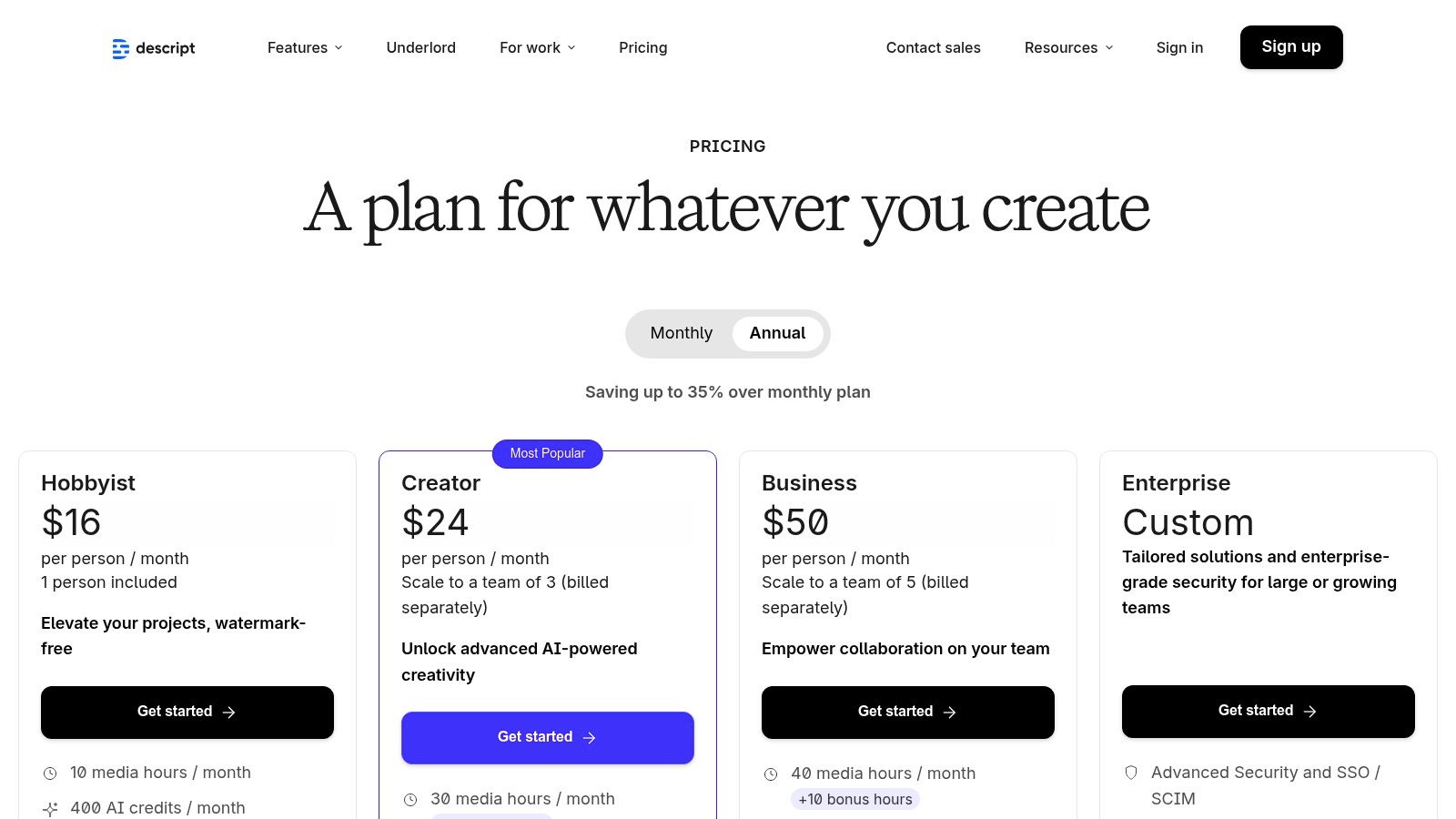
Descript offers a free plan with basic features and limited transcription. Paid plans start at $12/month (billed annually) for the Creator tier, which includes more transcription hours and access to premium features. The pricing is based on a clear metered model of "media minutes" and AI credits, so users should monitor their usage. The interface is exceptionally intuitive, making it easy for beginners to start creating high-quality content almost immediately.
Website: https://www.descript.com/pricing
| Pros | Cons |
|---|---|
| Extremely fast workflow for dialogue-heavy content | Timeline precision can be limiting for power users |
| Simple, cloud-based collaborative features | AI credits and media minutes require plan awareness |
| Powerful AI tools like Studio Sound and Overdub | Less suited for cinematic or action-heavy editing |
4. CapCut
CapCut has rapidly become the go-to editor for social-first content creators, evolving from a simple mobile app into a powerful cross-platform tool. It excels by offering an extensive suite of AI features designed for speed and engagement, making it one of the best AI video editing software options for producing viral Shorts, Reels, and TikToks without a steep learning curve.
The platform’s core strength is its accessibility and trend-focused toolkit. Users can effortlessly generate auto captions that match popular social styles, remove backgrounds with a single click, or use templates to quickly replicate trending video formats. Its cloud-based workspace ensures that projects started on a phone can be seamlessly refined on a desktop, offering unparalleled flexibility for creators on the move.
Key Features & Use Cases
- Social-First Templates & Auto Captions: A massive library of ready-to-use templates and effects helps creators quickly jump on new trends. The AI auto-captioning is perfect for social media managers and UGC creators who need to maximize viewer retention.
- AI Translation & Dubbing: Automatically translate and dub video dialogue into multiple languages, expanding content reach for global audiences.
- AI Background Removal: An effective one-click tool for removing video backgrounds, ideal for creating clean product promos or dynamic talking-head videos.
- Cloud Workspace: Sync projects across mobile, desktop, and web applications, allowing for a flexible editing workflow that suits any environment.
Pricing & Learning Curve
CapCut offers a robust free tier that covers many of its core features, making it highly accessible. A Pro subscription unlocks premium effects, cloud storage, and advanced features, with pricing that can vary by platform and region. The interface is incredibly intuitive, especially for those familiar with social media platforms, resulting in a very gentle learning curve for new users.
Website: https://www.capcut.com
| Pros | Cons |
|---|---|
| Fast ramp-up for UGC and repurposed clips | Pricing and features can vary by platform and region |
| Rich template/effects library for social trends | Occasional export or asset restrictions on free tier |
| Free tier available | Less suitable for complex, long-form professional projects |
5. Wondershare Filmora
Wondershare Filmora strikes a balance between user-friendliness and powerful AI functionality, making it a top contender for solo creators and beginners. It integrates a comprehensive suite of over 20 AI tools directly into its intuitive desktop interface (Windows/macOS), removing much of the technical friction common in more advanced editors. This makes it one of the best AI video editing software options for those who want to produce high-quality content without a steep learning curve.
Filmora’s strength is its accessibility, offering generative AI features that turn ideas into videos with minimal effort. Tools like AI Text-to-Video and Script-to-Video allow users to generate entire video sequences from simple text prompts, complete with stock footage, music, and voiceovers. This significantly speeds up the creative process for social media content, tutorials, and promotional videos.
Key Features & Use Cases
- Generative AI Suite: Includes AI Text-to-Video, Script-to-Video, and AI image/music generation. Ideal for marketers and YouTubers needing to quickly create B-roll or entire draft videos from a script or concept.
- AI Smart Cutout: A precise tool for removing backgrounds or specific objects from video clips without a green screen, useful for creating clean product shots or creative compositions.
- AI Audio Tools: Features like AI Audio Denoise and text-to-speech (TTS) enhance production value by cleaning up audio and generating clear voiceovers automatically.
- AI Credit System: Offers a flexible way to access powerful generative features. Users get a bundle of credits with their plan and can purchase more as needed, paying only for the intensive AI tasks they use.
Pricing & Learning Curve
Filmora offers several flexible plans, including an annual subscription starting around $49.99/year or a perpetual license. Generative AI features operate on a credit system, with plans including a set number of credits and options to purchase more. The interface is exceptionally clean and user-friendly, ensuring new users can start editing quickly. The gentle learning curve is a major advantage for creators who prioritize speed and efficiency over complex, pro-grade controls.
Website: https://filmora.wondershare.com
| Pros | Cons |
|---|---|
| Gentle learning curve for non-experts | Some AI features require separate credits |
| Flexible pricing and optional AI credit packs | Fewer advanced pro-grade finishing tools |
| Good value for solo creators | Performance can lag with complex 4K projects |
6. VEED
VEED is a comprehensive browser-based video editor that excels in speed and accessibility, making it ideal for social media teams and creators needing a fast turnaround. It integrates a powerful suite of AI tools directly into an intuitive, web-based interface, eliminating the need for software installation. This makes it one of the best AI video editing software solutions for collaborative projects and users who work across multiple devices.
The platform's core advantage is its focus on streamlining content repurposing and localization. VEED simplifies complex tasks like generating video clips from long-form content, adding accurate subtitles, and translating voiceovers into different languages, all within a few clicks. Its AI-driven automation is tailored for producing social-ready content efficiently.
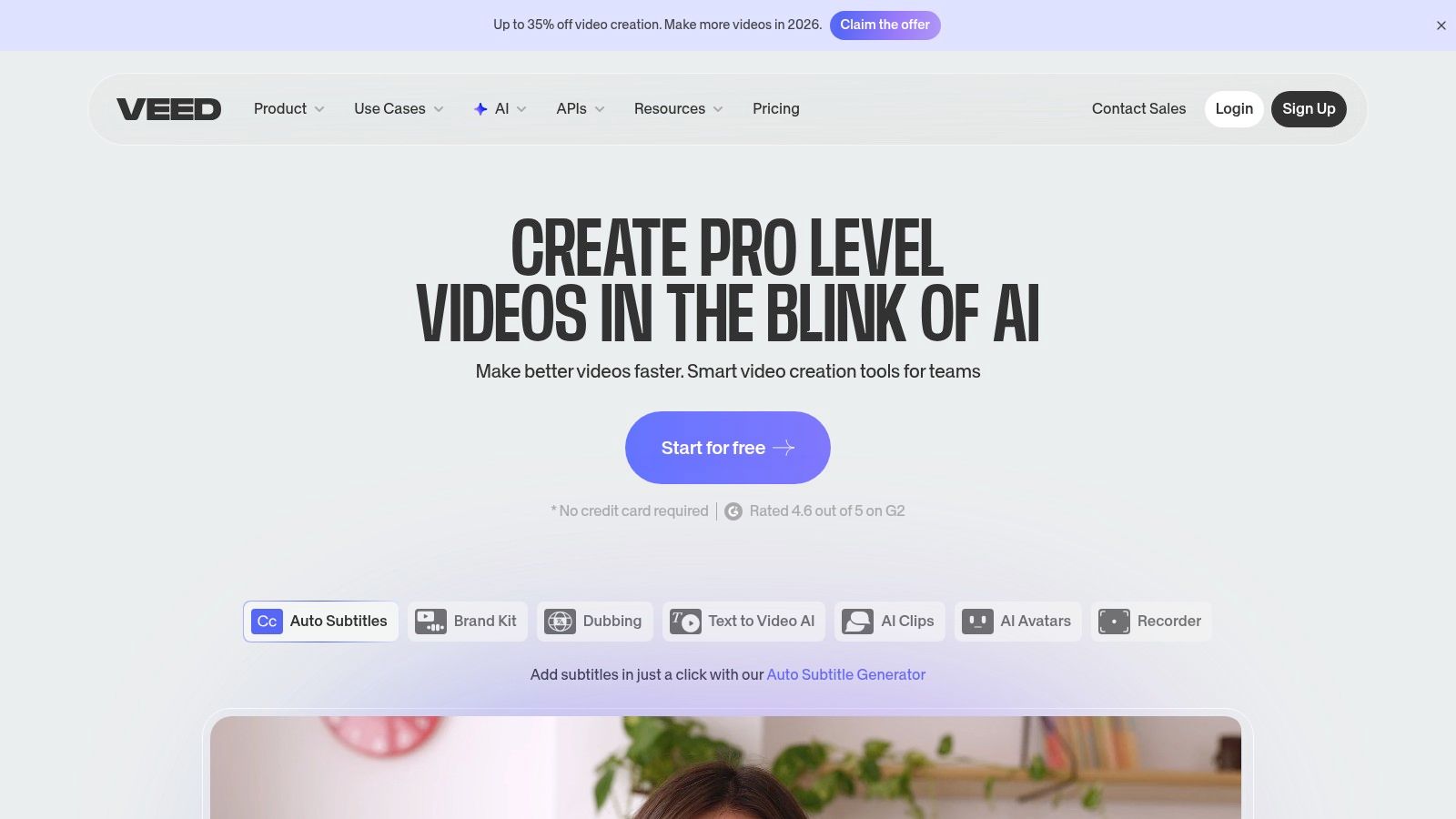
Key Features & Use Cases
- AI Auto-Dubbing & Translation: Automatically translate audio into dozens of languages and generate a new voiceover, with optional lip-sync. Perfect for global marketing teams looking to localize video ads and content.
- Auto Clip Generator: Feed VEED a long video, and its AI will identify engaging moments and automatically generate short, shareable clips. This is a game-changer for podcasters and webinar hosts repurposing content for TikTok or Reels.
- Text-Based Editing: Like other professional tools, VEED allows you to edit your video by simply editing the auto-generated text transcript, which significantly speeds up the rough cut process for interviews and tutorials.
- AI Assistant: A built-in AI agent helps you generate scripts, brainstorm ideas, and automate editing tasks, acting as a creative partner directly within the editor.
Pricing & Learning Curve
VEED offers several tiers, including a free plan for short projects. Paid plans start at $18/month (billed annually) for the Basic plan, with Pro and Business tiers offering more features and higher credit limits for AI tools. The credit system for AI features like translation can be a bit confusing, so it’s important to review plan details carefully. The interface is highly intuitive and designed for beginners, ensuring a minimal learning curve for users new to video editing.
Website: https://www.veed.io
| Pros | Cons |
|---|---|
| Very fast to produce social-ready variants | Generative models and some features consume paid credits |
| Strong auto-subtitle and localization options | Pricing and credit limits can be confusing; confirm plan details |
| No installs; works on most devices | Performance can depend on internet connection strength |
7. Runway
Runway is at the forefront of generative AI video, offering a web-based suite of tools for creators who want to push creative boundaries. It’s less a traditional editor and more an experimental playground, combining text-to-video and image-to-video models with a functional online editor. This makes it one of the best AI video editing software options for generating unique b-roll, visual effects, and conceptual animations from simple text prompts.
The platform excels at rapid ideation and creating visuals that would otherwise require complex VFX software or large production budgets. With generative models like Gen-3 Alpha, users can bring imaginative concepts to life, making Runway a powerful tool for artists, filmmakers, and advertisers looking to create cutting-edge content.
Key Features & Use Cases
- Generative Video Models (Gen-3 Alpha): Create high-quality video clips from text descriptions or still images. This is ideal for generating abstract b-roll, visualizing storyboards, or producing animated sequences for music videos and ads.
- AI Magic Tools: The web editor includes a robust set of features like AI-powered masking, background removal, motion tracking, and compositing, allowing for sophisticated edits directly in the browser.
- Rapid Prototyping: Quickly test visual concepts and generate variations without needing to shoot footage. Perfect for advertising agencies and creative teams iterating on campaign ideas.
- Web-Based Timeline Editor: A familiar editing interface allows users to combine generated clips with uploaded footage, add sound, and perform basic edits without leaving the platform.
Pricing & Learning Curve
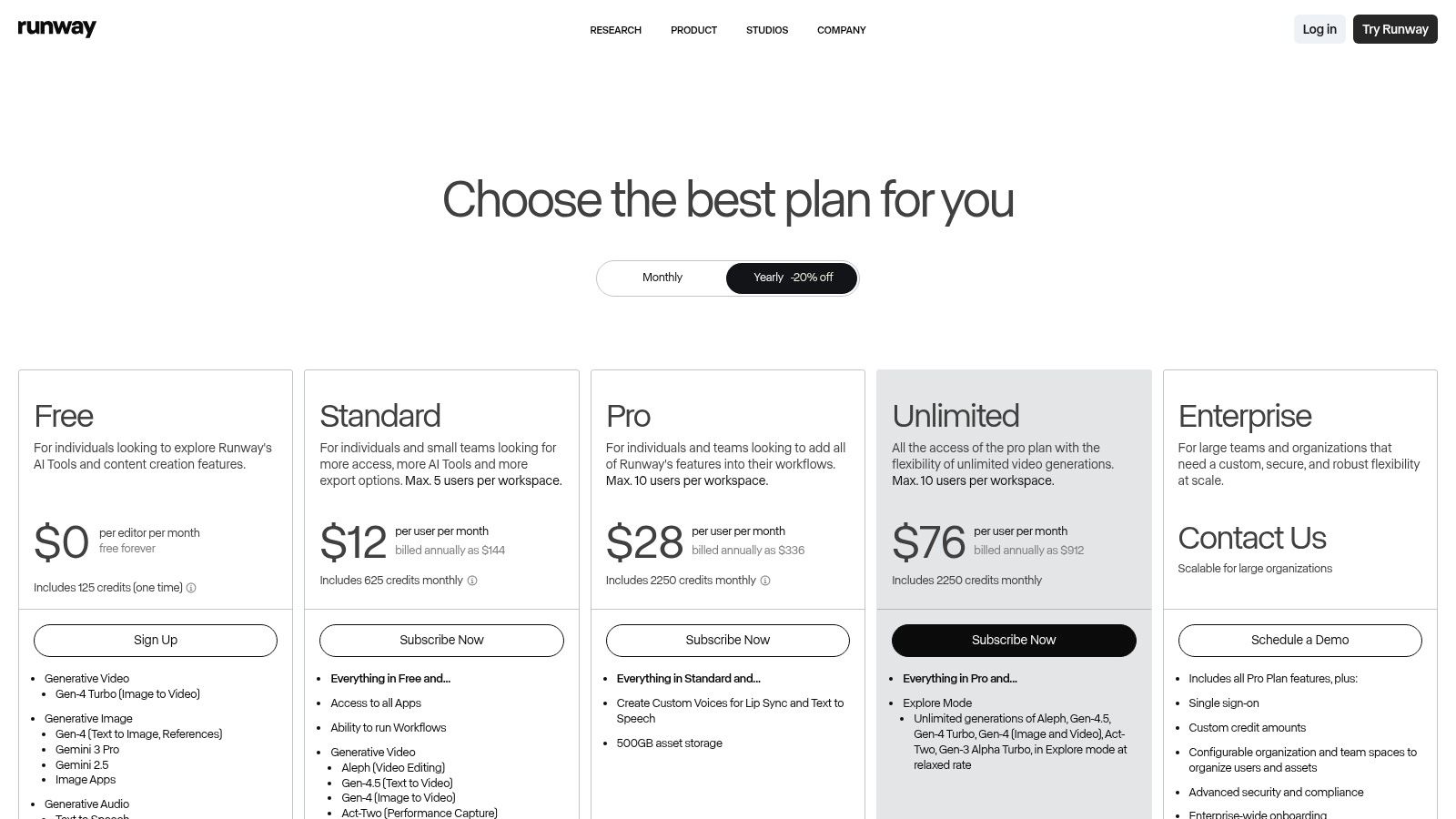
Runway operates on a credits system with a free tier that provides a limited number of credits to experiment with. Paid plans start at $12 per user/month (billed annually) and offer more credits and access to advanced features. While the interface is user-friendly, mastering the art of prompt engineering to get desired results requires practice. You can learn more about how Runway works and explore its capabilities to see if it fits your workflow.
Website: https://runwayml.com/pricing
| Pros | Cons |
|---|---|
| State-of-the-art generative video models | Credit costs for generation can add up quickly |
| Excellent for rapid concept iteration and VFX | Generated video quality can be inconsistent |
| All-in-one web-based creative suite | Outputs may need refinement in a traditional editor |
8. Blackmagic DaVinci Resolve (Studio)
For professionals who demand an all-in-one post-production suite, Blackmagic DaVinci Resolve stands as a titan in the industry, offering a complete solution for editing, color correction, visual effects, and audio post-production. Its power is amplified by the DaVinci Neural Engine, which integrates sophisticated AI tools directly into its various "pages" or workspaces. This makes it one of the best AI video editing software choices for users wanting a Hollywood-grade toolset without a subscription fee.
The platform’s major advantage is its unification of distinct professional disciplines into a single application. The Neural Engine enhances each of these areas with features like Magic Mask, an AI-powered rotoscoping tool that can isolate and track subjects with remarkable accuracy. Additionally, its automatic speech-to-text transcription and intelligent scene cut detection streamline workflows that were once incredibly tedious.
Key Features & Use Cases
- DaVinci Neural Engine: Powers features like Magic Mask for quick object isolation, Smart Reframe for social media content, and Voice Isolation to clean up dialogue. Perfect for VFX artists and editors needing advanced masking and audio repair.
- Speech-to-Text & Scene Cut Detection: Automatically generates transcripts for text-based editing and analyzes rendered video files to add cuts, saving immense time when working with pre-existing footage.
- Advanced Color Grading: Resolve is the industry standard for color correction and grading, offering unparalleled control over the look and feel of footage.
- Integrated Fusion VFX & Fairlight Audio: Build complex motion graphics and perform professional audio mixing and mastering without ever leaving the application.
Pricing & Learning Curve
DaVinci Resolve offers an incredibly generous free version that includes a vast majority of its core features. The full DaVinci Resolve Studio, which unlocks the most powerful Neural Engine tools, 4K+ resolutions, and more, is available for a one-time purchase of $295. While its comprehensive nature presents a steep learning curve, the lack of a subscription and the sheer power it offers make it an invaluable long-term investment for serious creators.
Website: https://www.blackmagicdesign.com/products/davinciresolve
| Pros | Cons |
|---|---|
| Full professional finishing capabilities in a single app | Steep learning curve for non-editors |
| Free version is extremely generous | Hardware-hungry for heavy AI and VFX tasks |
| Studio version is a one-time perpetual license | Node-based workflow can be complex for beginners |
9. Apple Final Cut Pro (Mac and iPad)
For editors deeply embedded in the Apple ecosystem, Final Cut Pro offers a professional-grade NLE highly optimized for Mac and iPad. Its machine learning features are engineered for speed and efficiency on Apple silicon, making it one of the best AI video editing software choices for users who prioritize performance and seamless hardware integration over cross-platform availability.
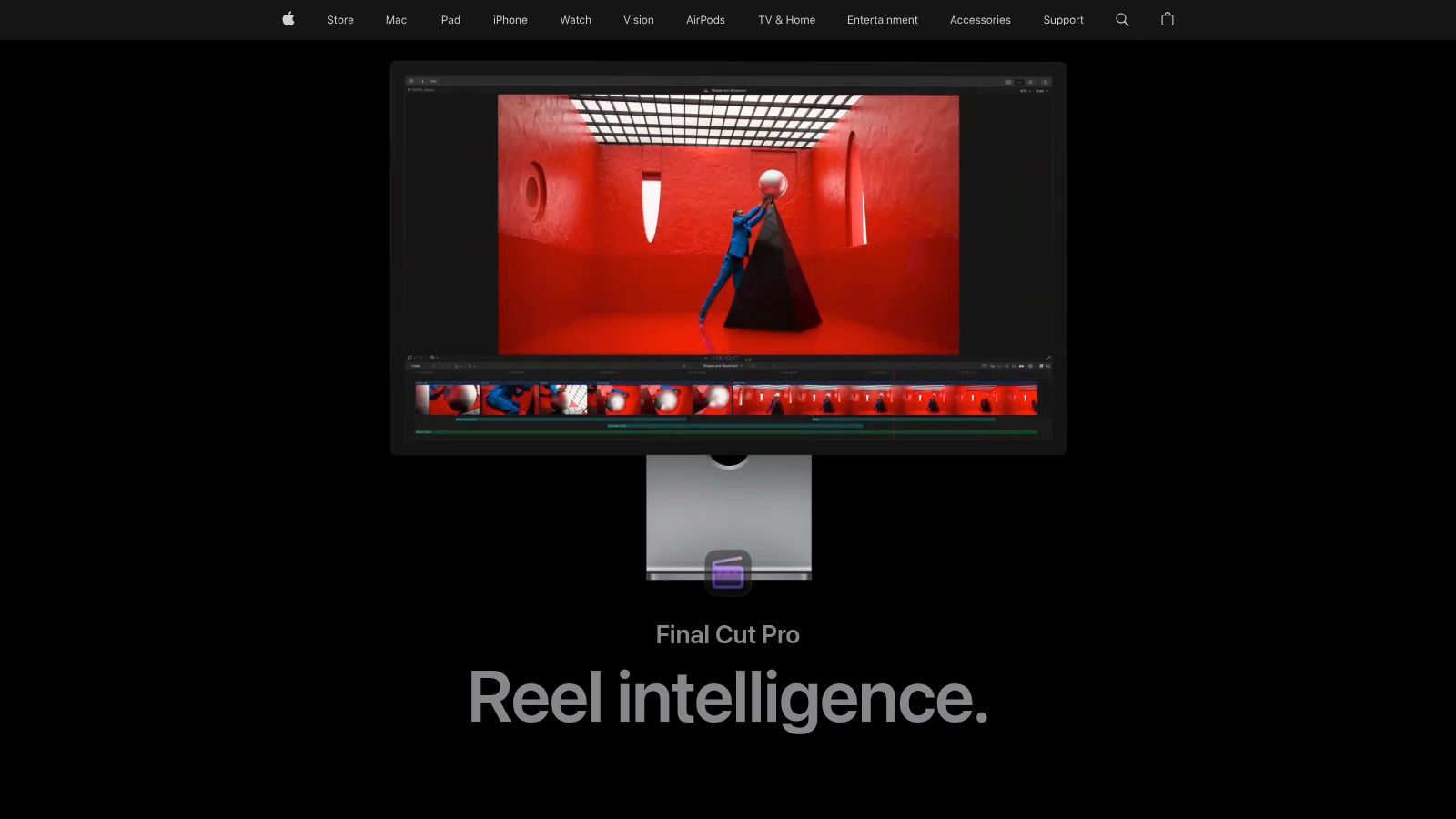
The platform shines with its ML-powered object tracking and Magnetic Timeline, which simplifies the editing process by avoiding clip collisions. Features like Smart Conform automatically reformat projects for vertical or square delivery, while Scene Removal Mask isolates subjects from backgrounds without needing a green screen, streamlining complex compositing tasks directly on the timeline.
Key Features & Use Cases
- Object Tracker: ML-driven tracking analyzes motion to match the movement of faces or objects, making it easy to attach text, graphics, or effects. It's perfect for censoring content or adding dynamic callouts.
- Scene Removal Mask: A powerful tool for isolating subjects from their background, useful for creators who need to place talent in new environments or create sophisticated composites without traditional keying.
- Smart Conform: Analyzes clips and intelligently crops your video to fit vertical and other social media-friendly aspect ratios, keeping the most important action centered.
- Voice Isolation: Reduces background noise and enhances the clarity of dialogue, ideal for interviews or vlogs recorded in busy locations.
Pricing & Learning Curve
Final Cut Pro for Mac is available as a one-time purchase of $299.99 from the App Store, which includes all future updates. The iPad version uses a subscription model at $4.99/month or $49/year. Its interface is more approachable than some NLEs, but mastering its full professional toolset requires time and practice.
Website: https://www.apple.com/final-cut-pro/
| Pros | Cons |
|---|---|
| Excellent speed on M-series Macs and iPads | Available only on macOS and iPadOS |
| One-time purchase option for Mac users | Some premium content requires a subscription |
| Extensive third-party plugin/template ecosystem | Less native integration with non-Apple software |
10. CyberLink PowerDirector 365
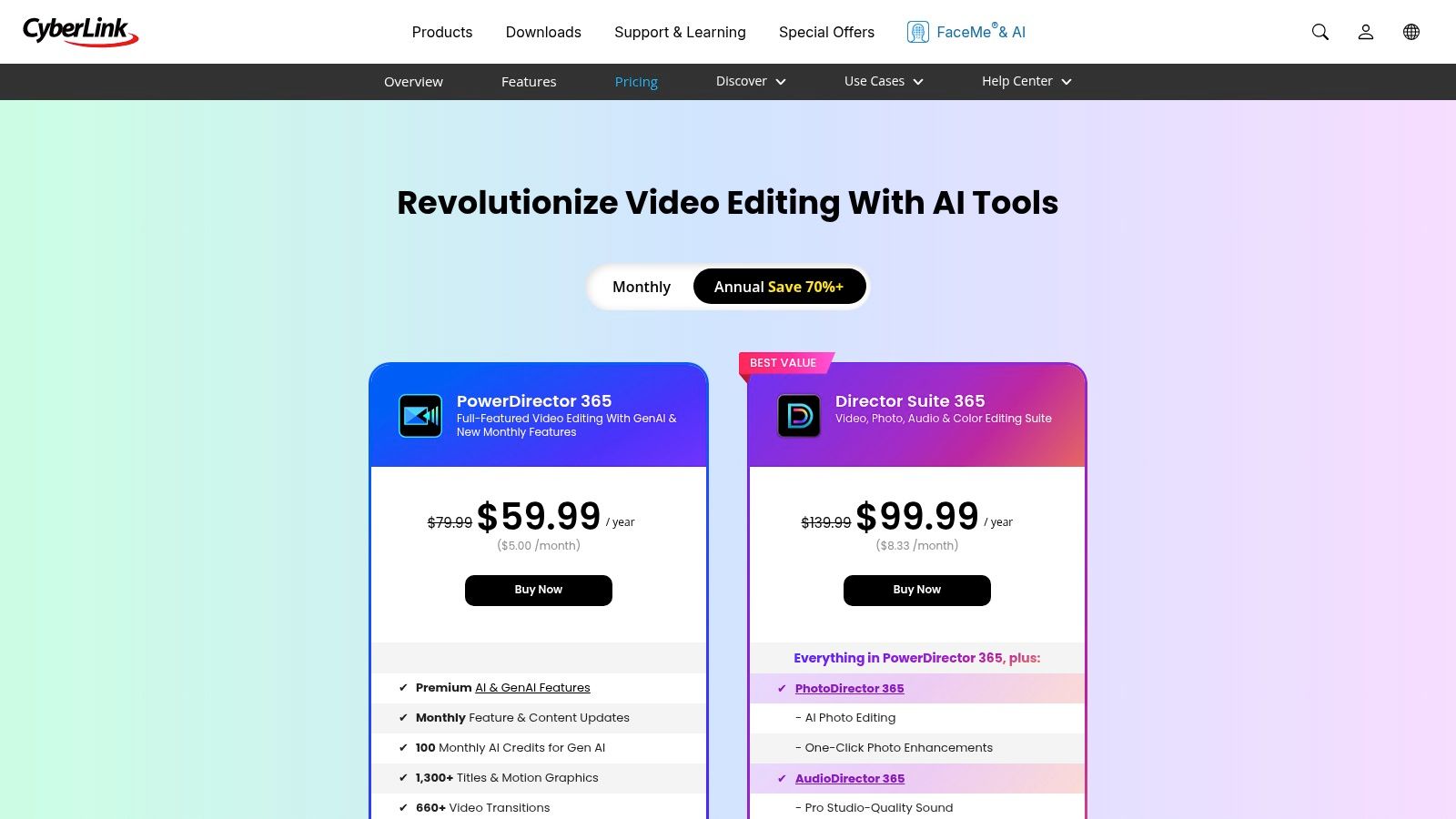
CyberLink PowerDirector 365 bridges the gap between consumer-level simplicity and prosumer power, making it a strong contender for the best AI video editing software for creators on the rise. Its appeal lies in a constantly evolving toolset that receives frequent updates, including new AI features, templates, and stock media assets. This model ensures users always have access to modern tools without a steep learning curve.
The platform excels at delivering impressive visual effects powered by AI. Features like one-click Sky Replacement can dramatically alter the mood of a scene, while AI Motion Tracking automates the complex task of attaching text or graphics to moving objects. These tools, once reserved for high-end software, are now accessible to YouTubers, social media managers, and aspiring filmmakers.
Key Features & Use Cases
- AI Visual Effects: Includes Sky Replacement for dramatic outdoor shots and Motion Tracking for adding dynamic text or effects that follow subjects. Ideal for travel vloggers and action-oriented content creators.
- AI Audio Tools: The AI-powered Denoise and Speech Enhancement tools clean up audio tracks, removing unwanted background noise and improving vocal clarity for professional-sounding results.
- Generative AI: PowerDirector incorporates generative AI tools for creating unique images and stickers, though usage is tied to a monthly credit system.
- Vast Content Library: The subscription provides access to an extensive library of stock videos, photos, and music from providers like Getty Images, making it a high-value package for creators needing diverse assets.
Pricing & Learning Curve
PowerDirector 365 is available through a subscription model, starting around $51.99/year for the video editor or as part of a larger Director Suite bundle. This pricing offers excellent value given the frequent feature drops and included stock libraries. The interface is more approachable than professional NLEs, making it suitable for beginners and intermediate users who want advanced capabilities without a daunting learning process.
Website: https://www.cyberlink.com/products/powerdirector-video-editing-software/pricing.html
| Pros | Cons |
|---|---|
| Excellent price-to-features value | GenAI credits can run out with heavy use |
| Frequent content and tool updates | Less suited to high-end finishing than professional NLEs |
| Accessible for beginners and prosumer users | Subscription is required for the best features and updates |
11. Microsoft Clipchamp
For users embedded in the Microsoft ecosystem, Clipchamp offers a surprisingly capable and accessible web-based editor. It merges a user-friendly, template-driven interface with practical AI features, making it one of the best AI video editing software choices for quick social media content, business presentations, and everyday projects. Its main advantage is its seamless integration with Windows, OneDrive, and Microsoft 365, providing a convenient workflow for many users.
The platform excels at simplifying the creation process. Its AI-powered "auto compose" feature can analyze your clips, images, and audio, then suggest a professionally arranged sequence complete with transitions and music. This automation is perfect for those who need to produce polished videos quickly without a steep learning curve.

Key Features & Use Cases
- Auto Compose: Let AI assemble your media into a coherent video draft. It's ideal for creating quick highlight reels, family vacation videos, or simple marketing promos from a folder of assets.
- Text-to-Speech & Auto Captions: Generate realistic voiceovers in various languages and automatically create synchronized captions to improve accessibility and engagement on social platforms.
- Brand Kit: A premium feature that allows businesses to maintain brand consistency by pre-loading logos, fonts, and color palettes for use across all video projects.
- OneDrive Integration: Directly import media from and export finished videos to OneDrive, streamlining file management and collaboration for those using Microsoft's cloud storage.
Pricing & Learning Curve
Clipchamp has a free tier with 1080p exports, but its full potential is unlocked with a Microsoft 365 Personal or Family subscription (starting at $6.99/month). This premium access includes 4K exports, brand kits, and premium stock content. The interface is incredibly intuitive and browser-based, making it one of the easiest tools to learn for beginners or casual users.
Website: https://clipchamp.com/en/pricing/
| Pros | Cons |
|---|---|
| Easy for beginners and browser-based | Feature ceiling for power users |
| Premium features included with Microsoft 365 | Some premium stock requires a Microsoft 365 subscription |
| Smooth file management via OneDrive | AI features are less advanced than dedicated tools |
12. InVideo (invideo AI)
For creators who need to move from an idea or script to a finished video as quickly as possible, InVideo is a formidable text-to-video platform. It excels at transforming simple text prompts or detailed scripts into engaging videos, complete with stock footage, music, and AI-generated voiceovers. This makes it one of the best AI video editing software choices for rapid content creation, particularly for social media ads, promotional content, and explainer videos.
InVideo’s core strength is its streamlined, prompt-based workflow. Users can input a concept, and the AI generates a complete video draft, including scenes, visuals, and narration. This approach significantly lowers the barrier to entry for video creation, allowing marketers and business owners to produce content at scale without deep technical expertise.
Key Features & Use Cases
- Script-to-Video & Text-to-Video: Automatically generates entire video sequences from a simple text prompt or a full script. Ideal for marketers creating product promos, UGC-style ads, and social media content without filming.
- AI Avatars & Voiceovers: Choose from a library of AI avatars and realistic text-to-speech voices to narrate your videos, eliminating the need for live talent or professional voice actors.
- Integrated Stock Libraries: Gain access to extensive stock media from sources like iStock directly within the editor, making it easy to find relevant B-roll footage and images.
- Team Collaboration: Higher-tier plans offer shared workspaces and assets, making it suitable for marketing teams and agencies managing multiple projects.
Pricing & Learning Curve
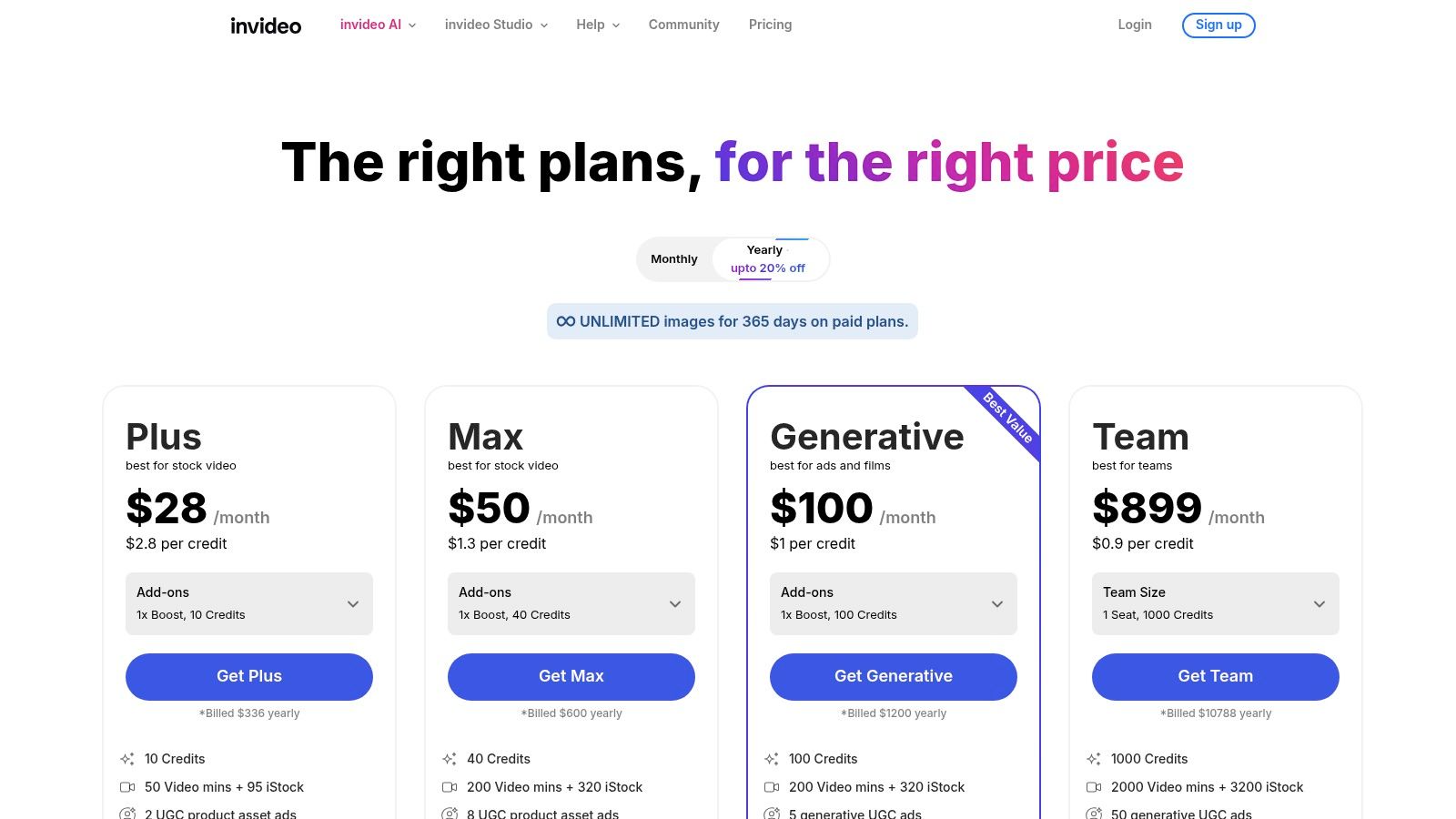
InVideo operates on a freemium model with paid plans starting at $20/month (billed annually). Paid tiers provide more AI generation credits, additional export minutes, and remove watermarks. The platform uses a credit-based system for AI features, so users must manage their allocations. Its interface is highly intuitive and designed for beginners, featuring a minimal learning curve compared to traditional editors.
Website: https://invideo.io/pricing
| Pros | Cons |
|---|---|
| Extremely fast path from script to video draft | Generative quality can be inconsistent |
| Intuitive, beginner-friendly interface | Credit system requires careful cost management |
| Scales from solo creators to enterprise teams | Limited manual control compared to NLEs |
Top 12 AI Video Editors — Feature Comparison
| Tool | Core features | Quality (★) | Price / Value (💰) | Target & USP (👥 ✨) |
|---|---|---|---|---|
| VideoBGRemover 🏆 | AI full-video BG removal, MP4/MOV/WebM, up to 4K & 120min, PNG/WebM/ProRes exports | ★★★★★ | 💰 Pay-as-you-go credits (never expire); ~$0.50–$2/min; secure checkout | 👥 Creators & teams — ✨ precise hair/shadow cutouts, long-form support, flexible pro exports |
| Adobe Premiere Pro | Industry NLE + Sensei AI (Object Mask, Auto Reframe, Text edit) | ★★★★★ | 💰 Subscription (can be costly over time) | 👥 Professional editors — ✨ deep toolset & Adobe ecosystem |
| Descript | Transcript-first editing, Studio Sound, overdub, clip generator | ★★★★☆ | 💰 Subscription + metered media/AI credits | 👥 Podcasters/tutorial creators — ✨ text-driven speed & collaboration |
| CapCut | Social templates, auto-captions, object tracking, BG removal | ★★★★ | 💰 Free tier; in-app purchases/region variants | 👥 Shorts/Reels creators — ✨ trend templates & cross-device cloud sync |
| Wondershare Filmora | Desktop editor with 20+ AI tools (Text-to-Video, TTS/STT) | ★★★★ | 💰 One-time/subscription + AI credit packs | 👥 Beginners/solo creators — ✨ easy AI generative tools |
| VEED | Browser editor: auto edits, dubbing/translation, script edit | ★★★★ | 💰 Subscription + credits for generative features | 👥 Social teams — ✨ fast cloud workflows, strong subtitles/localization |
| Runway | Generative video (Gen-4/4.5), AI masks, motion/compositing | ★★★★☆ | 💰 Credit-based; free tier + paid models | 👥 VFX/creative teams — ✨ rapid generative iteration & masking |
| Blackmagic DaVinci Resolve (Studio) | Neural Engine (Magic Mask), color, Fairlight, Fusion VFX | ★★★★★ | 💰 Free version; Studio perpetual license | 👥 Colorists & post pros — ✨ end-to-end professional finishing |
| Apple Final Cut Pro | ML Magnetic Mask, smart conform, fast M-series performance | ★★★★★ | 💰 One-time purchase (Mac/iPad only) | 👥 macOS/iPad users — ✨ unmatched speed on Apple silicon |
| CyberLink PowerDirector 365 | AI denoise, sky replace, motion tracking, stock library | ★★★★ | 💰 Subscription with stock & monthly updates | 👥 Prosumer creators — ✨ frequent feature drops & value bundle |
| Microsoft Clipchamp | Templates, auto-compose, TTS, OneDrive integration | ★★★ | 💰 Free/basic; premium via Microsoft 365 | 👥 Business & quick creators — ✨ MS365 file convenience |
| InVideo | Script/text-to-video, stock & avatar voices, credit system | ★★★★ | 💰 Subscription + credits for generative usage | 👥 Marketers & ad creators — ✨ fast script→video drafts |
Choosing the Right AI Tool for Your Workflow
Navigating the landscape of AI-powered video editing can feel overwhelming, but as we've explored, the key is to match the tool to the task. The era of a single, one-size-fits-all editor is giving way to a more modular and efficient workflow. The best AI video editing software for you is not necessarily the one with the most features, but the one that solves your most significant creative bottleneck with precision and speed.
We've seen how comprehensive NLEs (Non-Linear Editors) like Adobe Premiere Pro and DaVinci Resolve are integrating powerful AI to streamline professional post-production, from auto-reframing to neural engine-powered color grading. For those whose content is driven by dialogue, such as podcasters and educators, Descript’s text-based editing paradigm has fundamentally changed the game. Meanwhile, social media creators and marketers find their perfect match in platforms like CapCut and VEED, where speed, templates, and trend-focused features are paramount.
The core takeaway is this: identify your primary need and find the specialized tool that excels at it. Trying to force a general-purpose editor to perform a highly specific, complex task is often a recipe for frustration and wasted time.
How to Select Your AI Video Editing Stack
Making a final decision requires a clear assessment of your own production needs. Don't just chase the newest or most hyped platform; instead, audit your creative process and pinpoint where AI can deliver the most impact.
Consider these crucial factors:
- Primary Use Case: Are you creating long-form educational content, fast-paced social media ads, or cinematic short films? The demands of a 90-minute tutorial are vastly different from a 15-second TikTok video. A platform like Runway excels at generative effects, while InVideo is built for rapid, template-based ad creation.
- Technical Skill Level: Be honest about your comfort with complex interfaces. Professional suites like DaVinci Resolve and Final Cut Pro offer immense power but come with a steep learning curve. In contrast, tools like Microsoft Clipchamp or Wondershare Filmora are designed for accessibility and quick onboarding.
- Budget and Pricing Model: Your budget will significantly influence your choice. Do you prefer a one-time purchase (DaVinci Resolve Studio), a comprehensive subscription (Adobe Creative Cloud), or a flexible, pay-as-you-go model for specific tasks? A project-based creator might benefit more from a usage-based tool than a fixed monthly subscription.
- Workflow Integration: How well does a new tool fit into your existing process? If you rely on a specific editor, look for AI tools that function as plugins or offer easy export/import options. The goal is to build a seamless workflow, not a disjointed collection of applications.
The Power of Specialized Tools in a Modern Workflow
The most significant trend emerging from the AI video revolution is the rise of specialized, single-purpose tools. While all-in-one suites are adding AI features, they often can't match the depth, accuracy, and efficiency of a dedicated application. This is especially true for one of the most common and time-consuming tasks in video editing: background removal.
For creators aiming for a polished, professional look, clean and precise background removal is non-negotiable. It opens up a world of creative possibilities, from placing subjects in virtual studios to creating dynamic, layered compositions for ads and social media content.
This is where a tool like VideoBGRemover proves its indispensable value. Instead of relying on a clunky, resource-intensive rotoscoping process or a subpar built-in feature in a general editor, you can offload this critical task to a specialist. Its AI model is trained exclusively on this one function, resulting in superior edge detection and cleaner cutouts, even with complex motion and 4K footage. By integrating a dedicated tool for this one step, you elevate the final quality of your video while freeing up hours of manual labor, regardless of which primary NLE you use for the final assembly.
Ultimately, building the perfect AI-driven video workflow is about strategic selection. Combine a primary editor that fits your overall needs with best-in-class specialized tools that solve your biggest pain points. This hybrid approach allows you to work faster, produce higher-quality content, and focus your energy on what truly matters: telling a compelling story.
Ready to eliminate green screens and achieve flawless background removal in your videos? Integrate VideoBGRemover into your workflow today to see how a specialized AI tool can save you time and elevate your production quality. Get started for free and experience the power of precise, one-click cutouts at VideoBGRemover.
Ready to Remove Your Video Background?
See a free preview before you buy.
No credit card required • Free preview on every video